

Units of Measurement Settings
Introduction
The Units Settings page in Blinksale allows you to create and manage units of measurement that can be applied to items in your invoices and estimates. Using appropriate units helps provide clarity in your billing documents by specifying exactly how you’re quantifying your products or services.Understanding Units of Measurement
Units of measurement in Blinksale are descriptive labels that quantify the goods or services you provide. They help both you and your clients understand exactly what’s being billed. Common examples include:- Time-based units: Hours, Days, Weeks, Months
- Quantity units: Pieces, Items, Units
- Weight units: Kilograms, Pounds, Tons
- Volume units: Liters, Gallons, Cubic Meters
- Length units: Meters, Feet, Inches
- Area units: Square Meters, Square Feet, Acres
Managing Units of Measurement
Viewing Your Units
The Units Settings page displays a table of all your configured units, including:- Unit name
- Creation date
- Usage count (how many saved items use this unit)
- Action buttons for editing or deleting
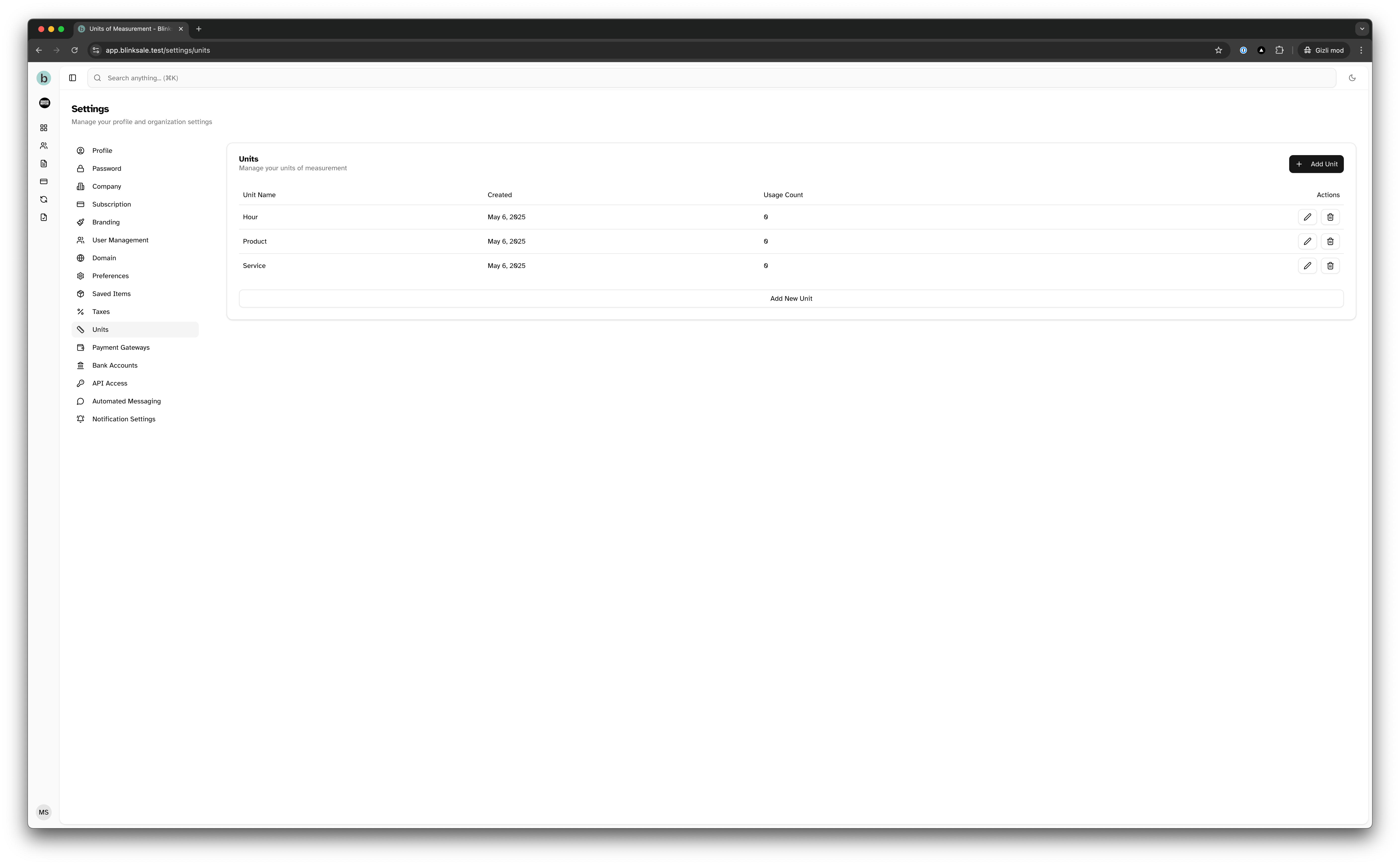
Creating a New Unit
To create a new unit of measurement:- Navigate to Settings → Units Settings
- Click the Add Unit button
- Enter a descriptive name for the unit (e.g., “Hours”, “Pieces”, “Kilograms”)
- Click Create Unit
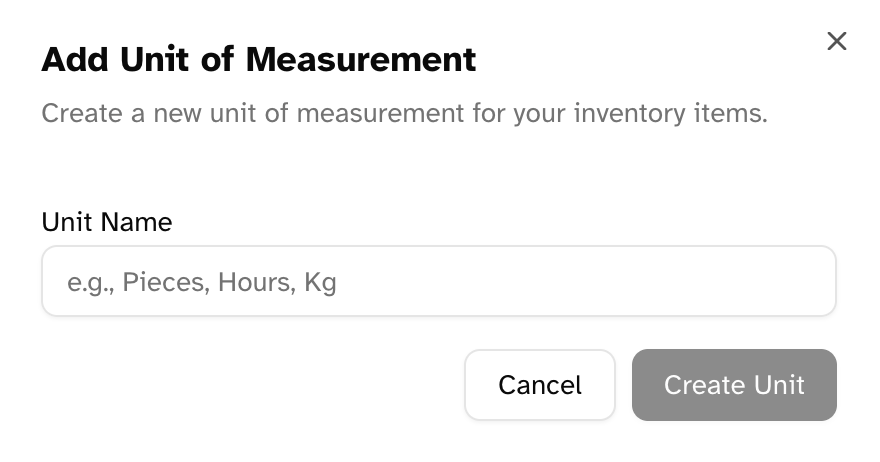
- Use clear, universally recognized names
- Be consistent with singular or plural forms (e.g., choose either “Hour” or “Hours”)
- Consider industry standards for your business sector
- Create units that match how you naturally describe your products or services
Editing an Existing Unit
To modify an existing unit:- Locate the unit in the list
- Click the pencil (edit) icon
- Update the name as needed
- Click Save Changes
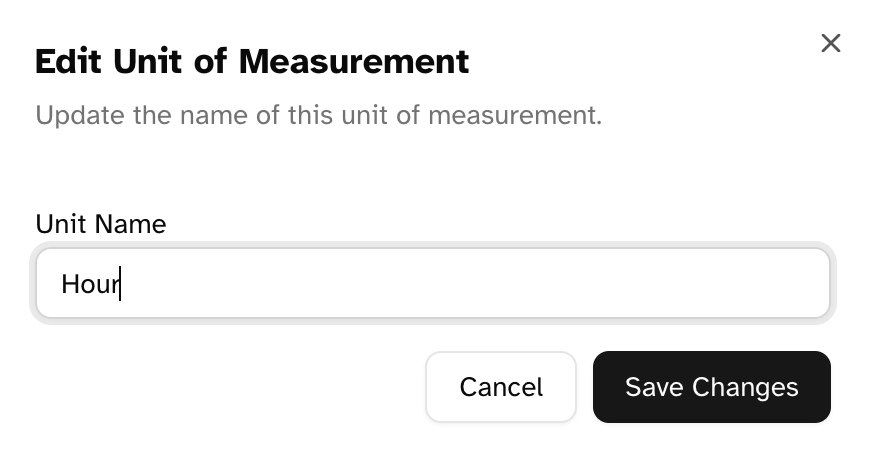
Deleting a Unit
To delete a unit of measurement:- Locate the unit in the list
- Click the trash (delete) icon
- Confirm the deletion in the dialog
- You cannot delete units that are currently in use (have a usage count greater than zero)
- The delete button will be disabled for any unit with an active usage count
- You must remove the unit from all saved items before you can delete it
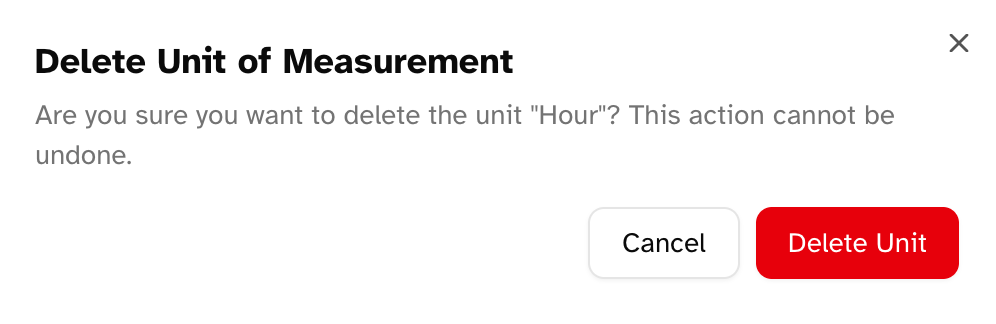
Using Units in Documents
Applying Units to Line Items
When creating or editing invoices and estimates, you can select units for each line item:- Create or edit an invoice/estimate
- For each line item, select the appropriate unit from the dropdown
- Enter the quantity based on the selected unit
- The unit will appear next to the quantity in the final document
Default Unit Settings
You can configure a default unit to streamline your workflow:- Navigate to Settings → Preferences
- In the Default Values section, select your default unit
- All new line items will pre-populate with this unit
Best Practices for Unit Management
Organizing Your Units
- Keep it simple: Only create the units you regularly use
- Use clear naming: Choose names that are immediately recognizable
- Be consistent: Maintain a consistent naming approach (e.g., all singular or all plural)
- Consider international clients: Use units that are recognized internationally if you have global clients
Common Units by Industry
Different industries typically use different units:- Consulting/Professional Services: Hours, Days, Sessions
- Construction: Square Feet, Linear Feet, Hours
- Manufacturing: Pieces, Units, Kilograms, Meters
- Food Service: Portions, Servings, Gallons
- Software: Users, Licenses, Hours, Months
Units and Pricing Strategy
Your choice of units can impact how clients perceive your pricing:- Breaking services down into smaller units (e.g., using hours instead of days) can provide more transparency
- Using larger units can simplify invoices with fewer line items
- Industry-specific units show professionalism and familiarity with standards
Troubleshooting
Common Issues
-
Cannot create duplicate unit names
- Each unit name must be unique within your organization
- If you receive an error, try using a more specific name
-
Cannot delete a unit that’s in use
- Remove the unit from all saved items first
- The usage count shows how many items are using the unit
-
Unit changes not reflecting in existing documents
- Unit changes only affect new documents
- Existing documents maintain the units applied when created
Getting Help
If you need assistance with units settings:- Refer to this documentation for guidance on managing units
- Consider industry best practices for your specific field
- Contact Blinksale support if you need technical help with the units feature