

Notification Settings
Introduction
The Notification Settings page in Blinksale allows you to customize how you receive updates about important business activities. By configuring these settings, you can choose which notification channels to use for different types of events, ensuring you stay informed about your business without being overwhelmed.Understanding Notification Settings
Notifications in Blinksale help you track important events related to your business operations, such as when:- Estimates are viewed, approved, or declined by clients
- Invoices are viewed or become overdue
- Payments are received or failed
Notification Channels
Blinksale offers four notification channels:Email Notifications
Email notifications are sent to your registered email address and provide detailed information about the event that triggered them. They’re ideal for maintaining a permanent record of important business activities.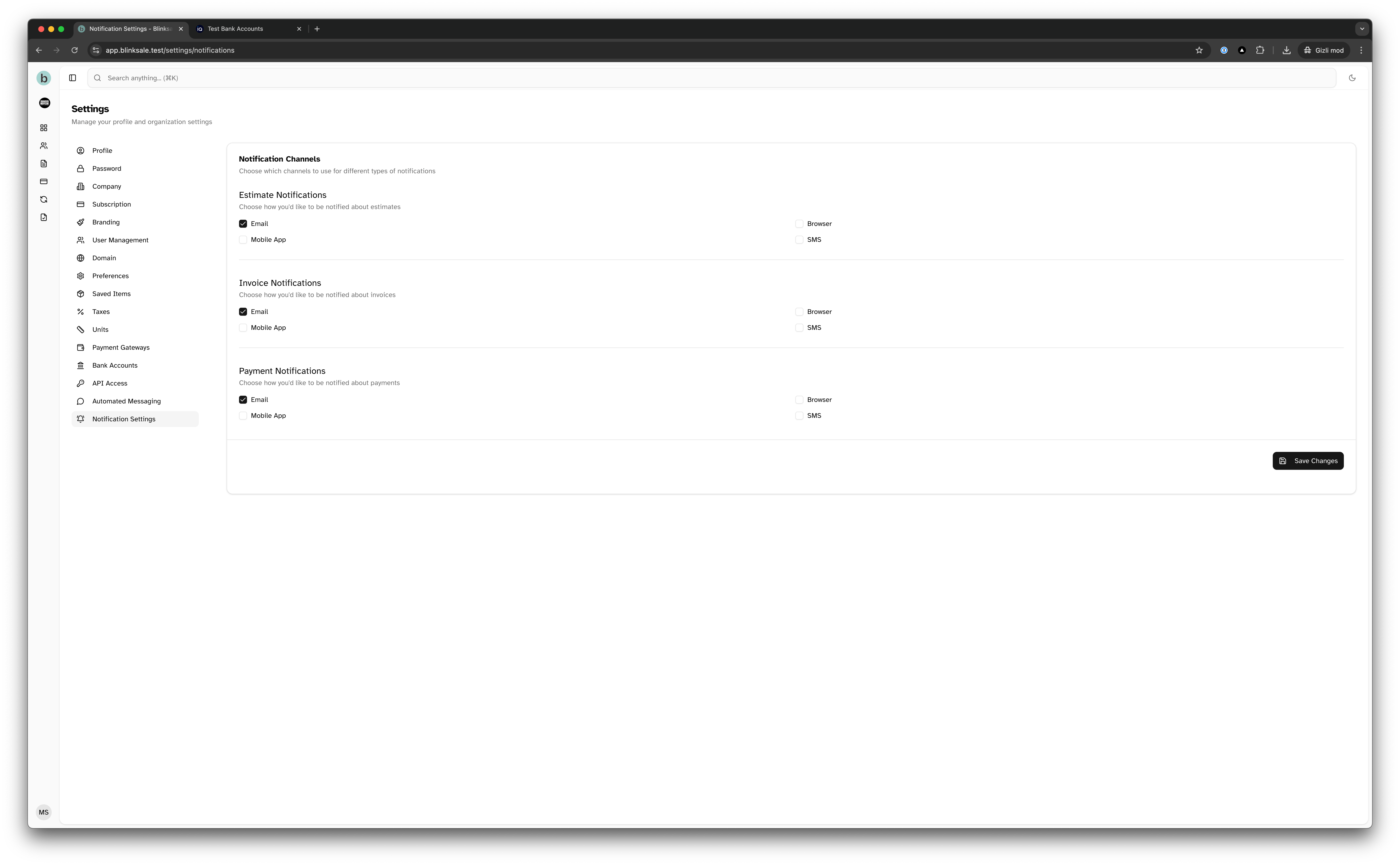
Browser Notifications
Browser notifications appear in your web browser when you’re logged into Blinksale, providing real-time updates about activity. These notifications are ideal when you’re actively working in the system.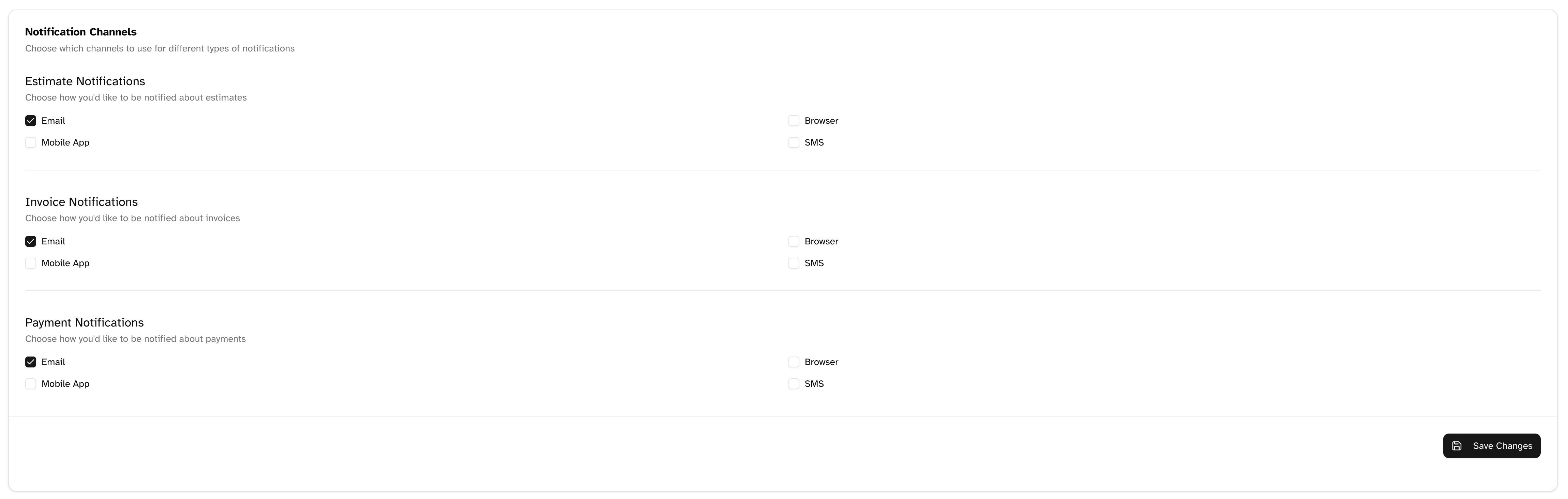
Mobile App Notifications
Mobile notifications are delivered through the Blinksale mobile app, giving you updates on the go. These are particularly useful for staying informed when you’re away from your desk.SMS Notifications
SMS notifications are text messages sent to your registered phone number for critical updates. These are especially valuable for time-sensitive information that requires immediate attention.Configuring Notification Settings
Accessing Notification Settings
To configure your notification preferences:- Navigate to Settings → Notifications
- You’ll see three sections: Estimate Notifications, Invoice Notifications, and Payment Notifications
- For each section, select the channels through which you want to receive notifications
- Click Save Changes when you’re done
Estimate Notifications
In the Estimate Notifications section, you can configure alerts for:- When clients view your estimates
- When estimates are approved
- When estimates are declined
- When estimates are about to expire
Invoice Notifications
The Invoice Notifications section allows you to set up alerts for:- When clients view your invoices
- When payments are due soon
- When invoices become overdue
- When invoices are paid
Payment Notifications
In the Payment Notifications section, configure alerts for:- When payments are received
- When payment attempts fail
- When refunds are processed
- When recurring payments are processed
Best Practices for Notification Management
Finding the Right Balance
The key to effective notifications is finding the right balance:- Too many notifications can lead to notification fatigue and important updates being missed
- Too few notifications might cause you to miss critical information about your business
Channel Selection Strategy
Choose notification channels based on urgency and importance:- Critical and time-sensitive: Use multiple channels (SMS, Email, Browser)
- Important but not urgent: Email and Browser notifications
- Routine updates: Browser notifications only
Recommended Channel Combinations
Based on notification type:-
Estimate Activities
- Client viewed estimate: Browser notifications
- Estimate approved: Email and Browser notifications
- Estimate declined: Email, Browser, and Mobile notifications
-
Invoice Activities
- Client viewed invoice: Browser notifications
- Payment due soon: Email and Mobile notifications
- Invoice overdue: Email, SMS, and Mobile notifications
- Invoice paid: Email and Browser notifications
-
Payment Activities
- Payment received: Email and Browser notifications
- Payment failed: Email, SMS, and Mobile notifications
- Refund processed: Email and Browser notifications
Troubleshooting Notifications
Common Issues
-
Not receiving email notifications
- Check your spam/junk folder
- Verify your email address is correct in your profile
- Add Blinksale’s email domain to your safe senders list
-
Browser notifications not appearing
- Ensure you’ve granted notification permissions to Blinksale in your browser
- Check that your browser supports notifications
- Verify you’re logged into Blinksale when expecting notifications
-
Mobile notifications not working
- Ensure the Blinksale app is installed and logged in
- Check that notifications are enabled for the app in your device settings
- Verify your device has an active internet connection
-
SMS notifications not arriving
- Confirm your phone number is correctly entered in your profile
- Check that SMS notifications are activated for your account
- Verify your mobile carrier supports SMS from application services
Notification Delivery Times
Different notification types have different delivery characteristics:- Email notifications: May have a delay of up to 15 minutes
- Browser notifications: Near real-time when you’re logged in
- Mobile notifications: Usually within 1-2 minutes depending on your device and network
- SMS notifications: Typically within 1-5 minutes depending on your carrier
Additional Considerations
Team Member Notifications
If you have a team:- Each team member can configure their own notification preferences
- Team administrators can set default notification settings for new team members
- Certain notification types can be restricted to specific roles or permissions
Integration with External Systems
Blinksale notifications can also be integrated with:- Slack and Microsoft Teams for team-wide notifications
- Project management tools like Asana, Trello, or Monday.com
- Custom webhooks for specialized notification routing