

Saved Item Settings
Introduction
The Saved Items Settings page in Blinksale allows you to create and manage a library of frequently used products and services. These saved items can be quickly added to invoices and estimates, saving you time and ensuring consistency in your billing documents. Each saved item can include complete details like pricing, quantity, tax rates, and units of measurement.Understanding Saved Items
Saved items are pre-configured products or services that you offer regularly to your clients. They help streamline your invoicing process by:- Eliminating the need to repeatedly enter the same item details
- Ensuring consistent pricing across documents
- Maintaining uniform descriptions of your offerings
- Applying the correct taxes and units automatically
Managing Saved Items
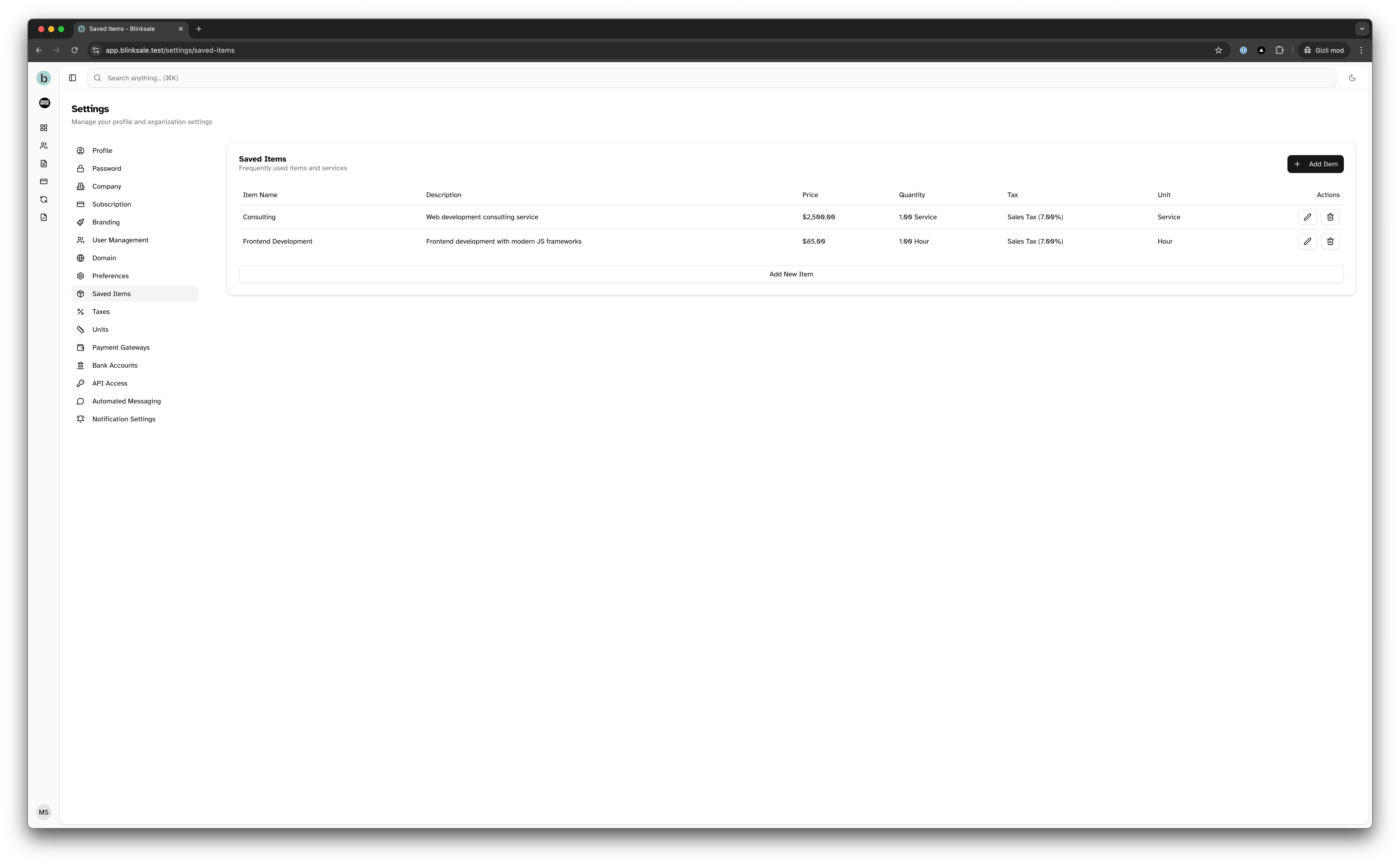
Viewing Your Saved Items
The Saved Items Settings page displays a table of all your configured items, including:- Item name
- Description
- Price
- Default quantity
- Associated tax rate
- Unit of measurement
- Action buttons for editing or deleting
Creating a New Saved Item
To create a new saved item:- Navigate to Settings → Saved Items
- Click the Add Item button
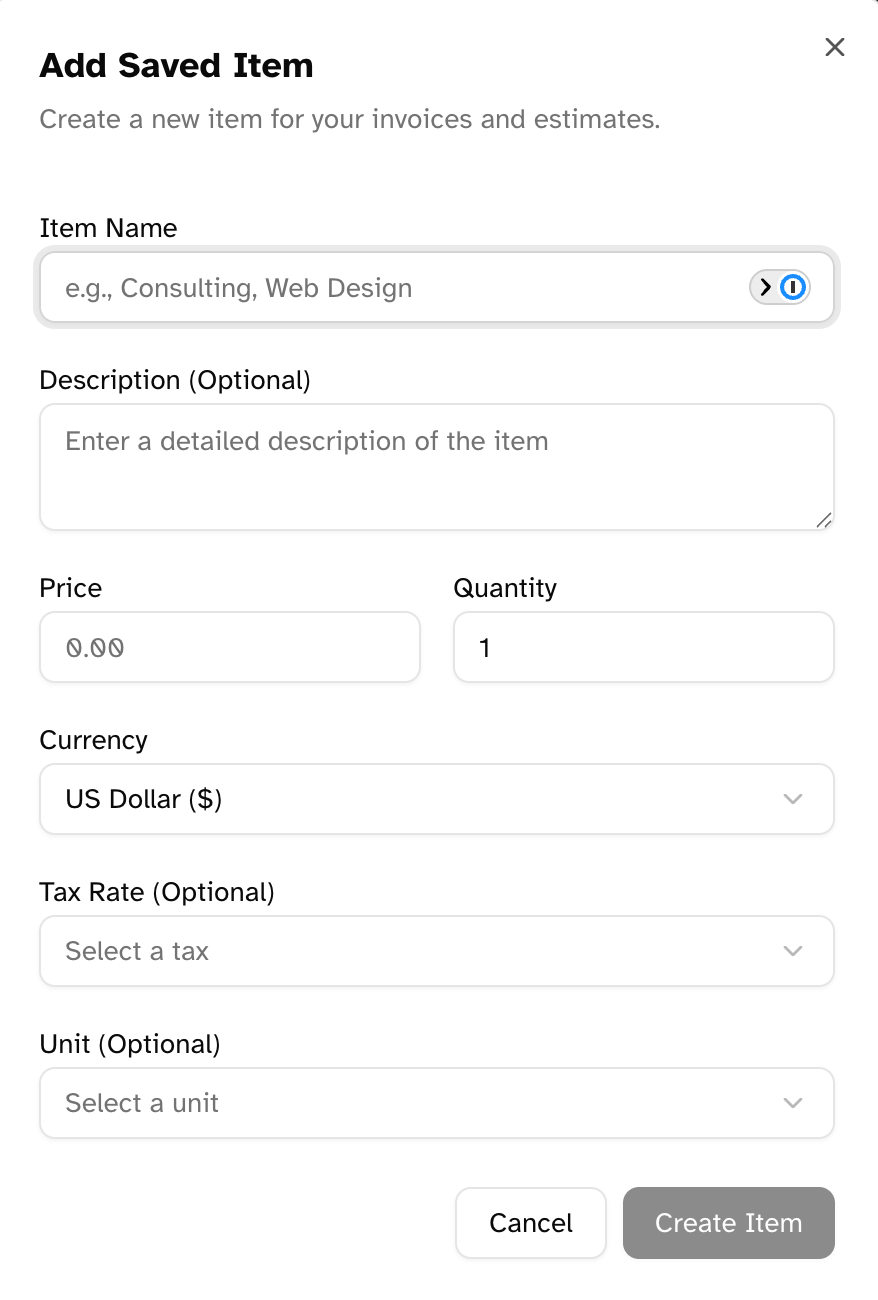
- Fill in the item details:
- Name: A descriptive title for the product or service
- Description (optional): Detailed information about the item
- Price: The standard rate for the item
- Quantity: Default quantity (typically 1)
- Currency: The currency used for the item
- Tax Rate (optional): An associated tax to apply
- Unit (optional): The unit of measurement for the item
- Click Create Item
- Use clear, descriptive names that will be recognized by you and your clients
- Include detailed descriptions that clarify exactly what’s being provided
- Set standard prices that reflect your regular rates
- Select appropriate tax rates and units to save time when creating invoices
Editing a Saved Item
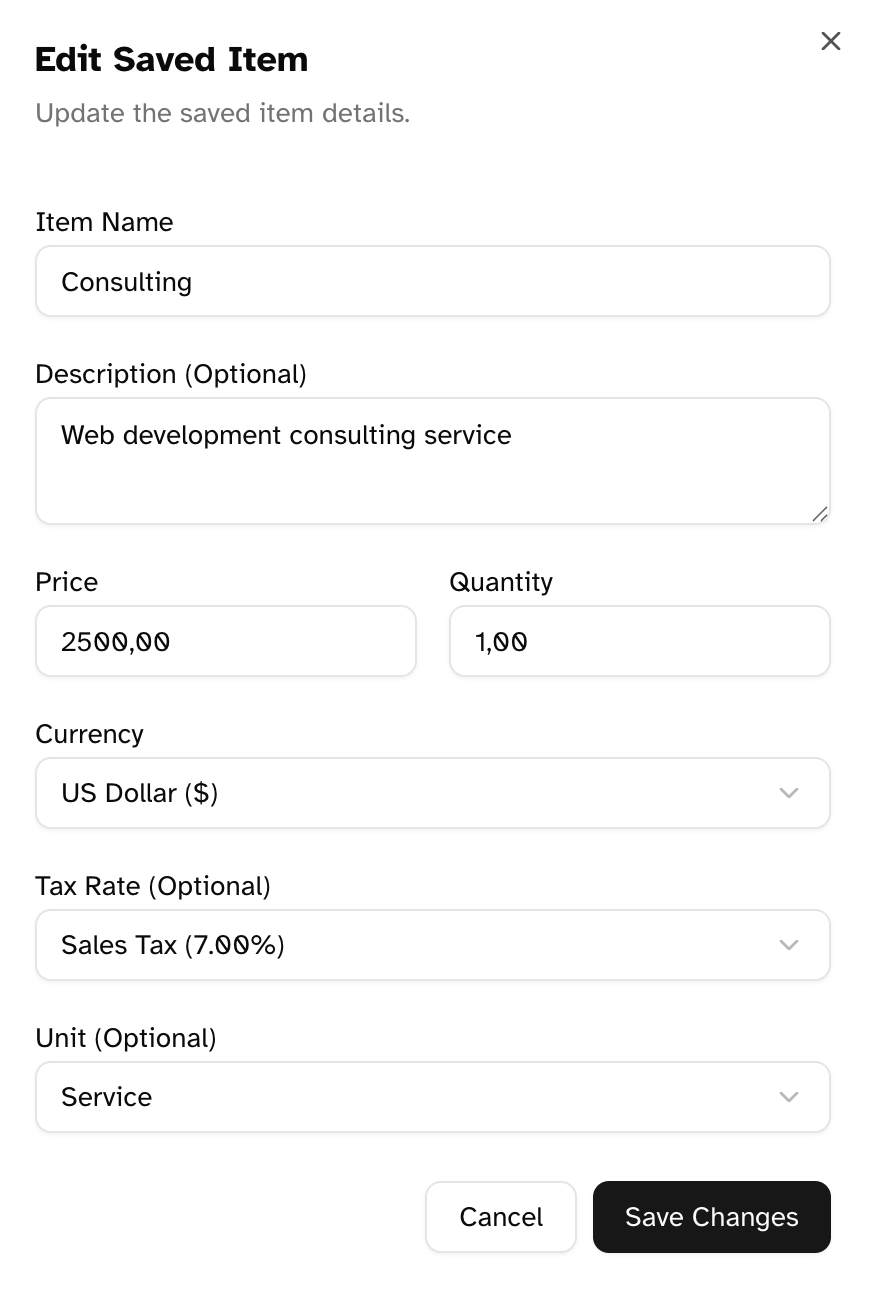
To modify an existing saved item:- Locate the item in the list
- Click the pencil (edit) icon
- Update any of the item details
- Click Save Changes
Deleting a Saved Item
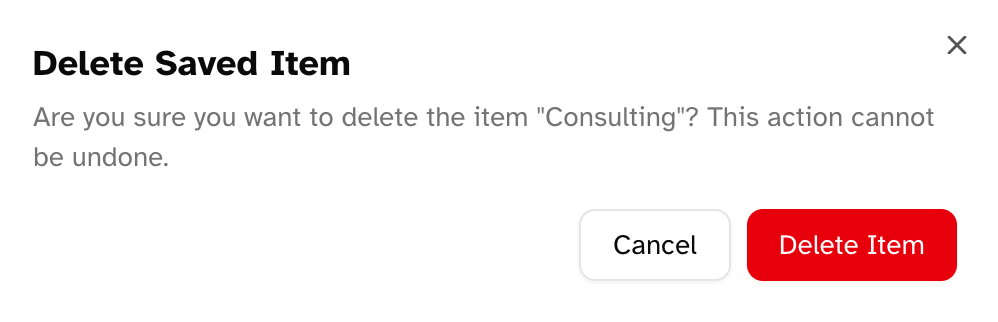
To delete a saved item:- Locate the item in the list
- Click the trash (delete) icon
- Confirm the deletion in the dialog
Using Saved Items in Documents
Adding Saved Items to Invoices and Estimates
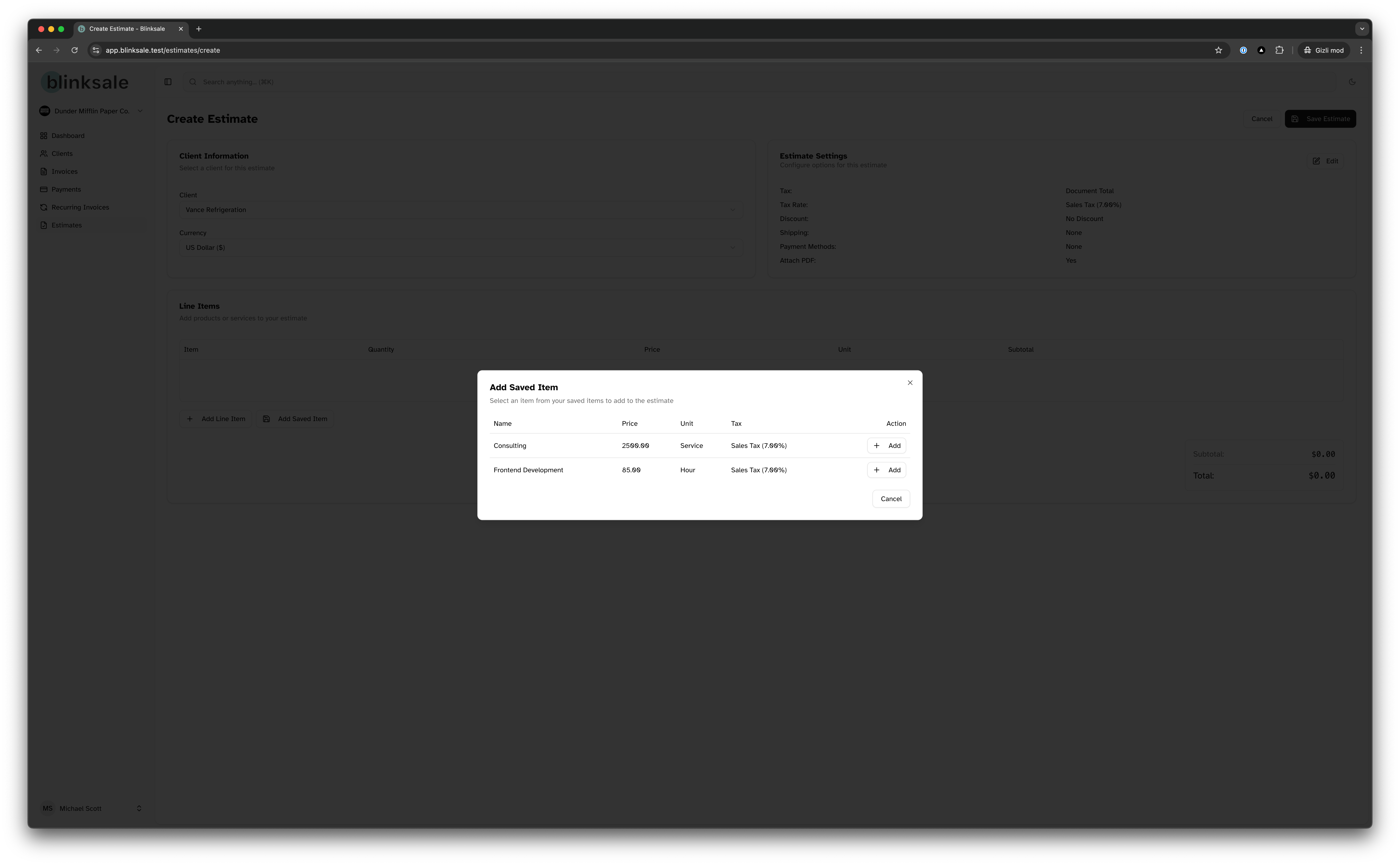
Saved items become available in the line item creation interface when creating or editing invoices and estimates:- Begin creating a new invoice or estimate
- In the line items section, look for a “Select Saved Item” option
- Choose the desired item from the dropdown
- The item details (name, description, price, quantity, tax, and unit) are automatically populated
- Adjust any values as needed for this specific instance
- Add additional items as required
Benefits of Using Saved Items
Using saved items offers several advantages:- Time Efficiency: Quickly add complete items rather than manually entering details each time
- Consistency: Maintain uniform pricing and descriptions across all your documents
- Reduced Errors: Eliminate typos and pricing mistakes that can occur with manual entry
- Professional Appearance: Present consistent, well-described services to your clients
Best Practices for Saved Items Management
Organizing Your Items
- Consistent Naming: Develop a clear naming convention for easy identification
- Logical Grouping: Consider prefixing similar items (e.g., “Consulting: Strategy” and “Consulting: Implementation”)
- Complete Details: Always include thorough descriptions to avoid confusion
- Regular Review: Periodically audit your saved items to update pricing and details
Strategies for Different Business Types
Service-Based Businesses
- Create items based on service types or hourly rates
- Include detailed scope descriptions
- Consider creating items at different hourly rates (standard, rush, weekend)
Product-Based Businesses
- Include product codes or SKUs in item names
- Specify exact quantities and units
- Consider creating bundles for commonly purchased combinations
Mixed Businesses
- Clearly differentiate between product and service items
- Create separate items for products with associated service fees
- Use consistent formatting to distinguish between types
Troubleshooting
Common Issues
-
Cannot create duplicate item names
- Each saved item name must be unique within your organization
- Use more specific names or include identifying details
-
Currency mismatches
- Saved items retain their configured currency
- When adding to an invoice with a different currency, you’ll need to adjust the price
-
Changes not reflected in existing documents
- Updates to saved items only affect new documents
- Existing documents maintain the item details as they were when created
Getting Help
If you need assistance with saved items:- Review this documentation for detailed guidance
- Use the search functionality to find specific items in large libraries
- Contact Blinksale support for technical help with the saved items feature
Advanced Tips
Item Templates for Project Types
Create template items that represent entire project phases or common service packages. For example:- Web Design Package: A complete package with description of all included services
- Monthly Retainer: Standard monthly service with detailed deliverables
- Product Bundle: Commonly sold together items as a single line item
Dynamic Pricing Strategies
For services with variable pricing:- Create multiple versions of similar items at different price points
- Use descriptive names that clearly indicate the pricing tier
- Include notes about when to use each variation