

API Access Settings
Introduction
The API Settings page in Blinksale allows you to create and manage API tokens for integrating external applications with your Blinksale account. These tokens provide secure access to your data through the Blinksale API, enabling you to build custom integrations, automate workflows, and connect with other business tools.What are API Tokens?
API tokens are secure credentials that allow external applications to access your Blinksale data. Each token:- Provides authenticated access to the Blinksale API
- Can be created, rotated (replaced), and deleted as needed
- Is specific to your organization
- Should be kept secure, as they grant access to your account data
Managing API Tokens
Viewing Your Tokens
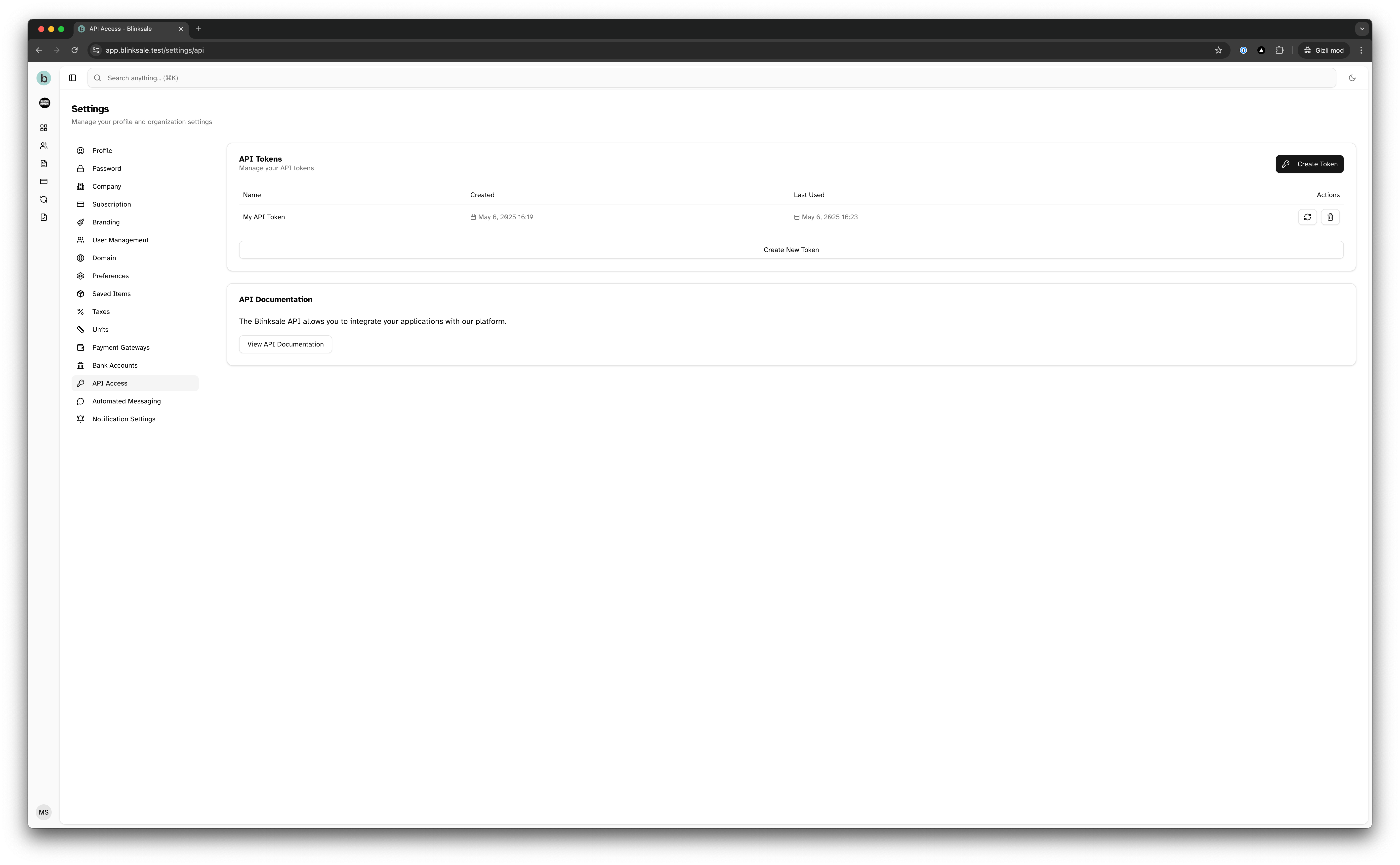
The API Settings page displays a list of all your current API tokens, including:- Token name (a descriptive label you provide)
- Creation date
- Last used date
- Actions you can perform (rotate or delete)
Creating a New Token
To create a new API token:- Navigate to Settings → API Settings
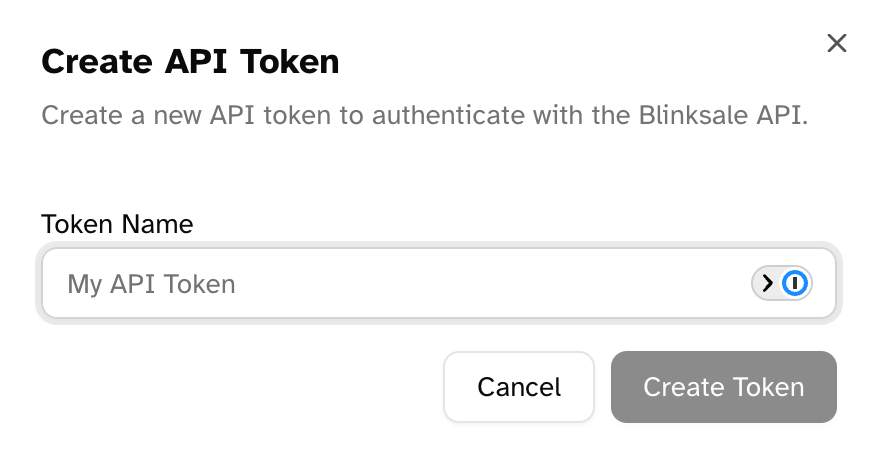
- Click the Create Token button
- Enter a descriptive name for your token (e.g., “Accounting Integration” or “Custom Reporting Tool”)
- Click Create Token
Token Security Best Practices
For optimal security:- Give each integration its own token with a descriptive name
- Store tokens securely (use environment variables or a secrets manager)
- Rotate tokens periodically, especially if you suspect they may have been compromised
- Delete tokens that are no longer needed
Rotating Tokens
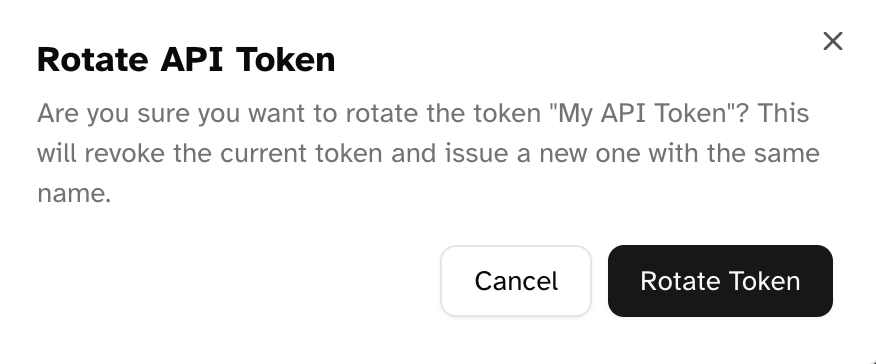
“Rotating” a token means replacing it with a new one while keeping the same name. This is useful when:- You need to replace a token that might be compromised
- You’re implementing regular security updates
- You’ve lost access to the original token
- Find the token in your list
- Click the rotate icon (circular arrows)
- Confirm the rotation
- Copy the new token that’s displayed (remember, it will only be shown once)
Deleting Tokens
To delete a token:- Find the token in your list
- Click the delete (trash) icon
- Confirm the deletion
Using the Blinksale API
API Documentation
The Blinksale API allows you to:- Create and manage clients and contacts
- Generate and send invoices and estimates
- Process payments
- Create and manage recurring invoices
- Access saved items, taxes, and units of measurement
- And much more
Authentication
To authenticate API requests, include your token in the request headers:Sample API Request
Here’s an example of how to make an API request using your token:Troubleshooting
Common Issues
-
“Invalid API token” error
- Ensure you’re using the correct token
- Check if the token has been rotated or deleted
- Verify the token is formatted correctly in your Authorization header
-
“Permission denied” error
- Confirm that your organization has access to the requested resources
- Check if your subscription plan includes the features you’re trying to access
-
Rate limiting
- The API has rate limits to prevent abuse
- If you’re making many requests, implement backoff strategies
Getting Help
If you encounter issues with the API:- Check the API documentation for detailed endpoint information
- Ensure your requests are properly formatted
- Contact Blinksale support if you continue to experience problems
Best Practices
- Secure storage: Never hardcode API tokens in your application code or store them in version control
- Descriptive naming: Use clear names for your tokens to track their usage
- Regular rotation: Periodically generate new tokens for security
- Error handling: Implement robust error handling in your API integrations
- Minimal scope: Request only the data you need to minimize load and improve performance