

Domain Settings
Introduction
Configuring a custom email domain in Blinksale allows you to send invoices, estimates, and other communications from your own business domain (like[email protected]) rather than a generic Blinksale address. This feature significantly improves your brand consistency and email deliverability, ensuring your important financial communications reach your clients’ inboxes instead of spam folders.
Why Use a Custom Email Domain?
Using a custom email domain offers several important benefits:Better Email Deliverability
Emails sent from your own verified domain are less likely to be flagged as spam by email providers, increasing the chances that your invoices and reminders will reach your clients’ inboxes.Professional Branding
Communications from your own domain (like[email protected]) look more professional and trustworthy than generic third-party domains, reinforcing your brand identity.
Improved Client Trust
When clients receive emails from a domain they recognize, they’re more likely to open them promptly, which can lead to faster payments and better communication.Accessing Domain Settings
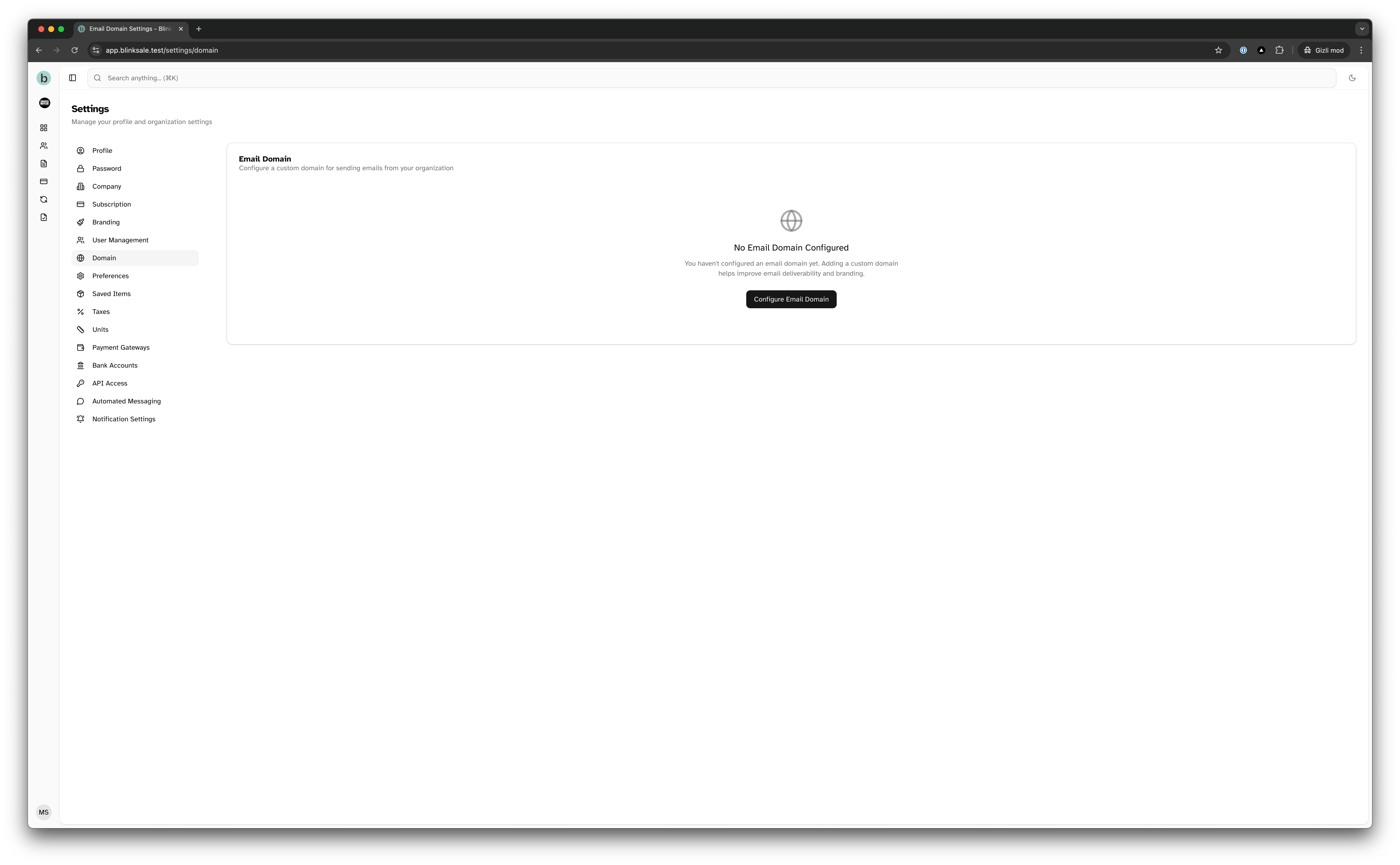
To configure your custom email domain:- Click on the Settings icon in the main sidebar
- Select Domain from the settings menu
- You’ll be taken to the Email Domain settings page where you can add and manage your domain
Adding a Custom Domain
When you first visit the Domain settings page, you’ll see an option to configure an email domain if you haven’t done so already. To add a new domain:- Click on the Configure Email Domain button
- In the dialog that appears, enter your domain name (e.g.,
yourbusiness.comor preferably a subdomain likemail.yourbusiness.com) - Click Add Domain
It’s recommended to use a subdomain (like
mail.yourbusiness.com) rather than your root domain for email configuration. This provides more flexibility and avoids potential conflicts with existing website or email settings.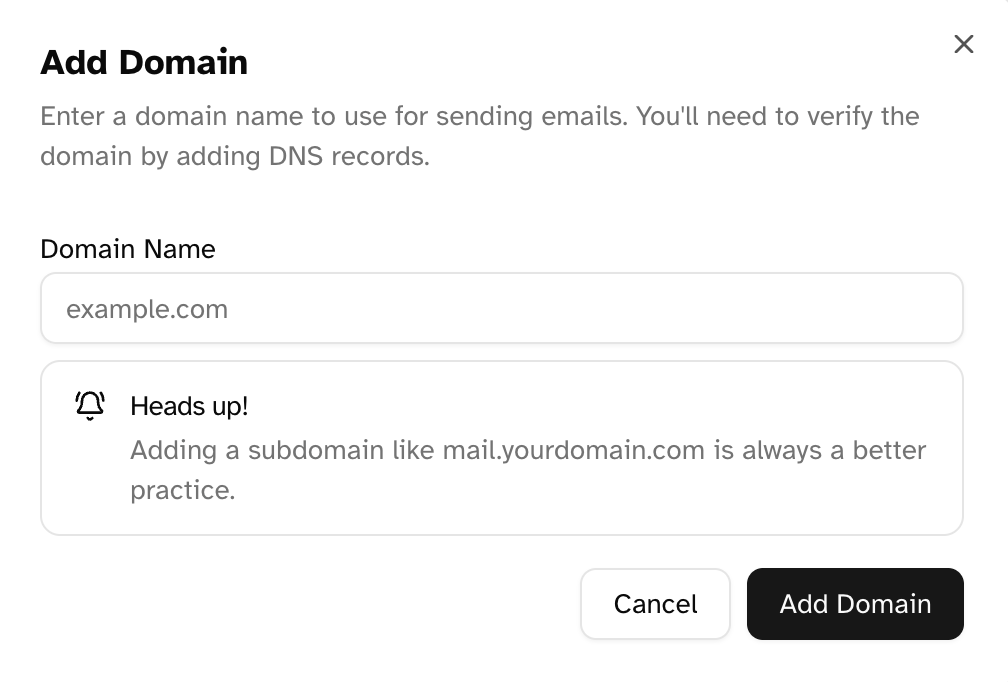
Verifying Your Domain
After adding your domain, you’ll need to verify ownership by adding several DNS records to your domain’s DNS configuration. These records prove that you control the domain and allow Blinksale to send emails on your behalf.Understanding DNS Records
The domain settings page will show you all the required DNS records that need to be added to your domain: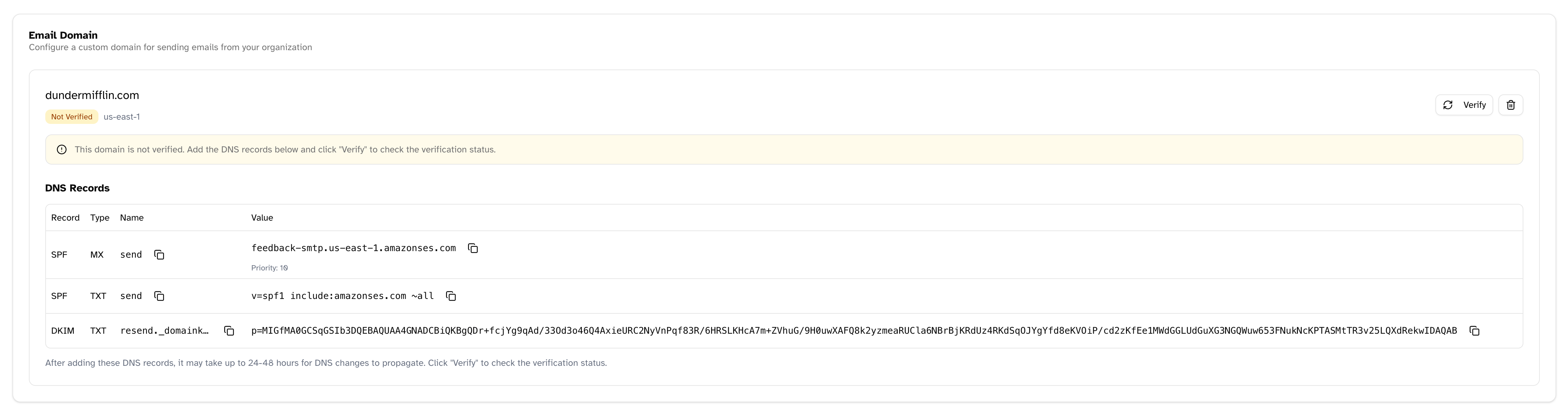
- TXT records - Text records that prove domain ownership
- MX records - Mail exchange records that handle email routing
- CNAME records - Records that map subdomains to another domain
- DKIM records - Records for email authentication
- Type - The type of DNS record (TXT, MX, CNAME, etc.)
- Name - The hostname to create the record for
- Value - The value/content of the record
- Priority - For some record types like MX records
Adding DNS Records
To add these records:- Log in to your domain registrar or DNS provider (like GoDaddy, Namecheap, Cloudflare, etc.)
- Navigate to the DNS management section
- Add each record shown in the Blinksale interface
- Save your changes
Checking Verification Status
After adding the DNS records:- Return to the Domain settings page in Blinksale
- Click the Verify button to check if your records have been properly configured
- If verification succeeds, you’ll see a confirmation message and your domain status will change to “Verified”
- If verification fails, check your DNS records again for any errors or typos

Configuring Your Sending Email Address
Once your domain is verified, you can configure the specific email address that will be used as the “From” address for all communications from Blinksale. To set up your sending email address:- In the verified domain section, find the Email Settings area
- Click the Change button next to the current email address
- Enter your preferred email prefix (the part before the @ symbol)
- Click Save
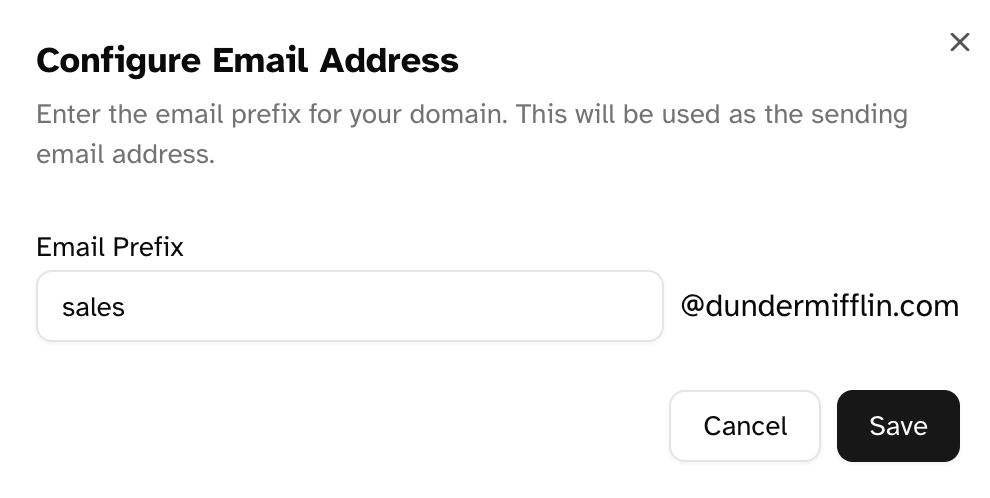
invoicesbillingaccountsfinancepaymentssales
You don’t need to create this email address in your own email system. Blinksale handles the sending infrastructure once your domain is verified. However, make sure you’re not using an email prefix that already exists for another purpose in your organization.
Managing Your Domain
After your domain is verified and configured, you have several options for managing it:Updating Your Sending Email
To change the sending email address:- Click the Change button next to the current email address
- Enter a new email prefix
- Click Save
Removing Your Domain
If you need to remove your custom domain:- Click the delete (trash) icon next to your domain
- Confirm the deletion in the dialog that appears
- Your domain will be removed, and Blinksale will revert to using the default system emails
Troubleshooting
Common Domain Verification Issues
Verification continues to fail:- Ensure you’ve added all the required DNS records exactly as shown
- Check for typos in record names or values
- Confirm you’re adding records to the correct domain/subdomain
- Allow sufficient time (24-48 hours) for DNS changes to propagate
- Contact your DNS provider if you’re unsure about how to add the required records
- Some DNS providers have limitations on record types or values
- If your provider doesn’t support certain record types, consider moving to a more fully-featured DNS provider
Email Deliverability Issues
Emails still going to spam:- Ensure your domain has been fully verified
- Check that your SPF, DKIM, and other email authentication records are correctly set up
- Consider your domain reputation (newly created domains may need time to build reputation)
- Verify the email addresses are correct
- Check if clients have strong spam filters that might be blocking your emails
- Ask clients to add your sending address to their safe senders list
Best Practices
Domain Selection
- Use a subdomain (like
mail.yourbusiness.com) rather than your root domain - Choose a domain that matches your business name and is recognizable to clients
- Avoid using free domain services for professional communications
Email Address Configuration
- Select a professional and clear email prefix (like
invoicesorbilling) - Avoid generic terms that might trigger spam filters
- Consider how the email address will appear to your clients
Management
- Regularly verify that your domain status remains “Verified”
- Update your DNS records if you change DNS providers
- Keep your domain registration active and renewed to maintain email functionality