

Tax Settings
Introduction
The Tax Settings page in Blinksale allows you to create and manage tax rates that can be applied to your invoices and estimates. Setting up appropriate tax rates ensures that your billing documents accurately reflect tax obligations and helps maintain compliance with tax regulations.Understanding Tax Rates
Tax rates in Blinksale are percentage values that can be added to line items or entire invoices. Common examples include:- Value Added Tax (VAT)
- Sales Tax
- Goods and Services Tax (GST)
- Provincial/State Taxes
- Municipal Taxes
- Name: A descriptive identifier (e.g., “VAT 20%”, “CA Sales Tax”)
- Rate: The percentage value applied (e.g., 20%, 7.5%)
Managing Tax Rates
Viewing Your Tax Rates
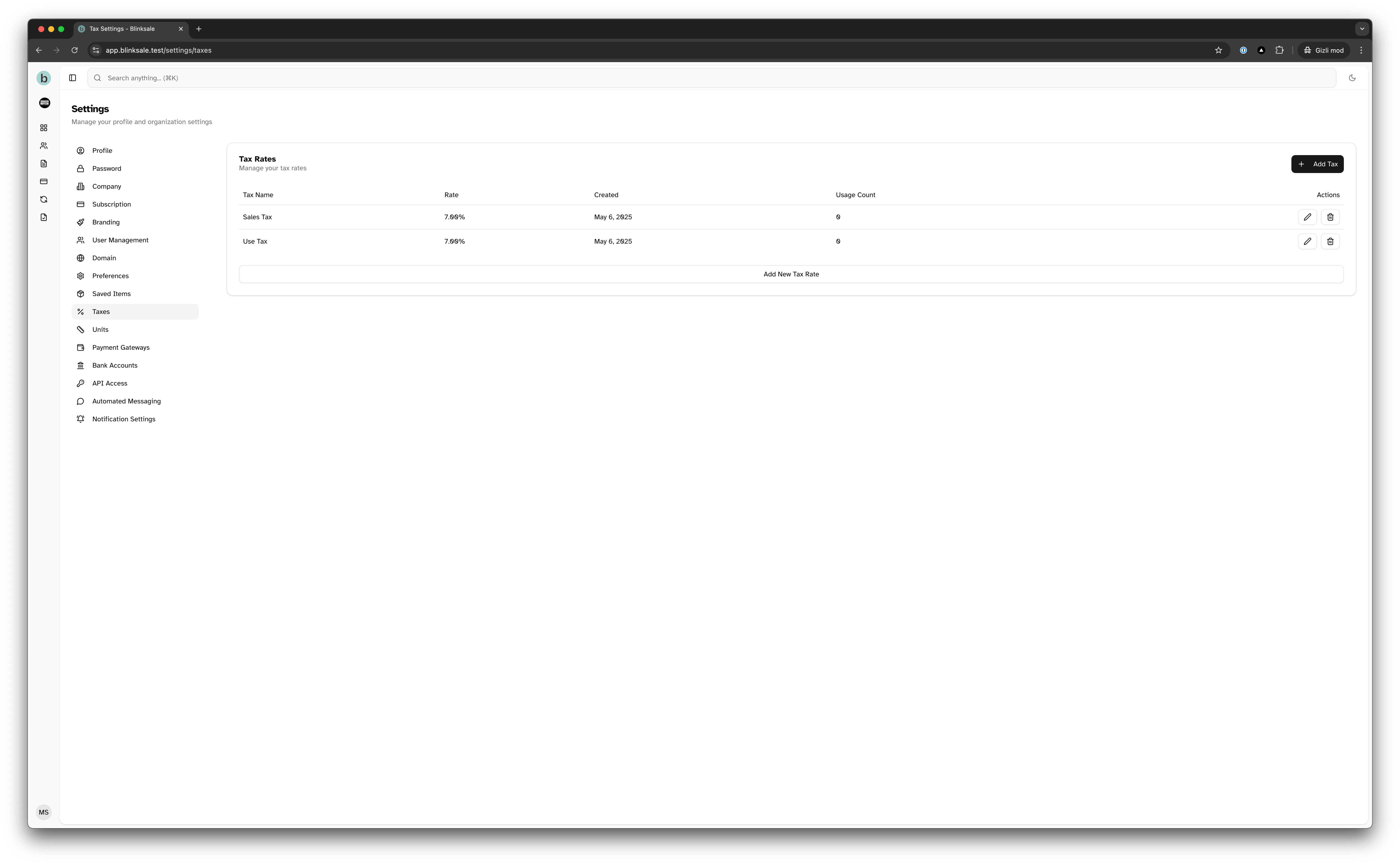
The Tax Settings page displays a table of all your configured tax rates, including:- Tax name
- Rate (as a percentage)
- Creation date
- Usage count (how many saved items use this tax)
- Action buttons for editing or deleting
Creating a New Tax Rate
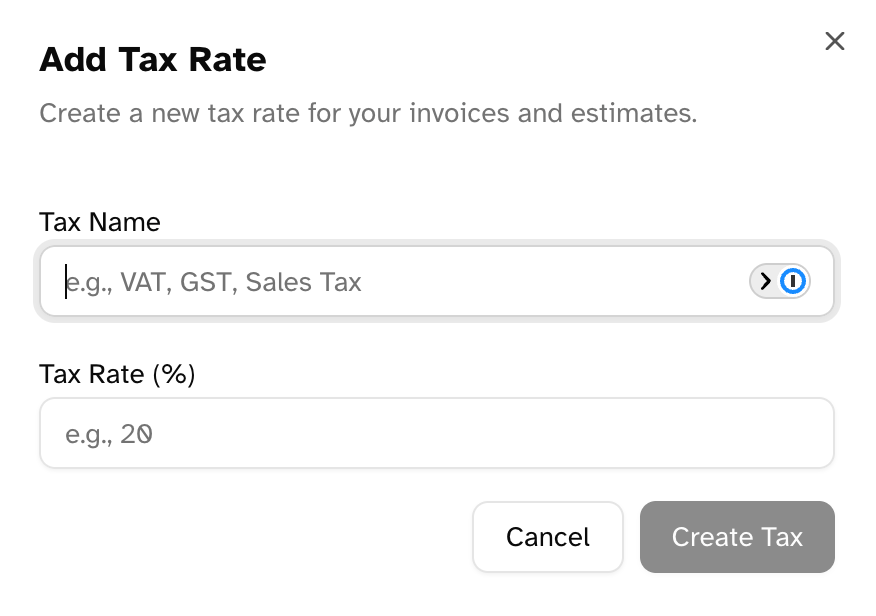
To create a new tax rate:- Navigate to Settings → Tax Settings
- Click the Add Tax button
- Enter a descriptive name for the tax (e.g., “VAT”, “Sales Tax”)
- Enter the percentage rate (e.g., “20” for 20%)
- Click Create Tax
- Use descriptive names that clearly identify the tax type
- Consider including the percentage in the name for quick reference (e.g., “VAT 20%”)
- Create separate tax rates for different jurisdictions if you operate in multiple regions
- Double-check your tax percentages for accuracy
Editing an Existing Tax Rate
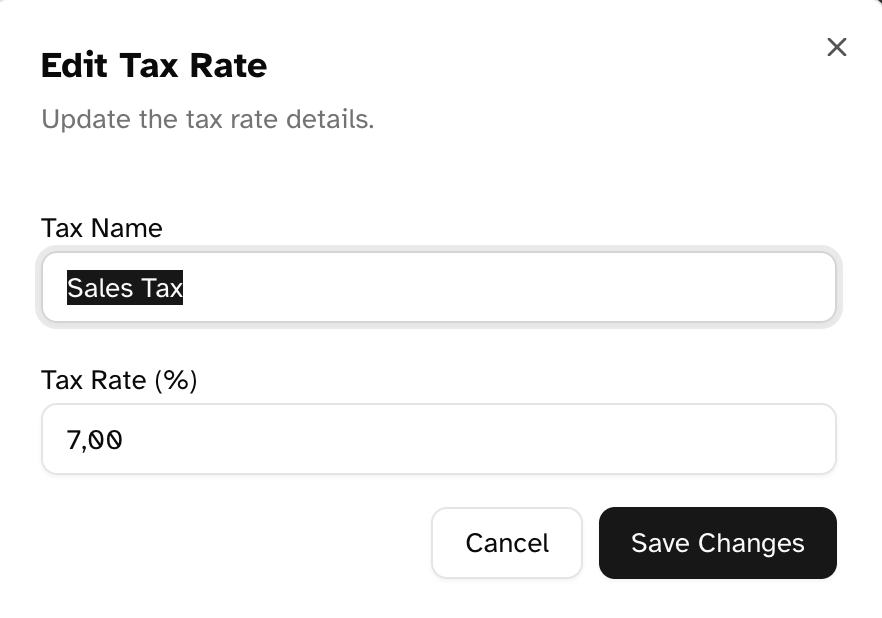
To modify an existing tax rate:- Locate the tax rate in the list
- Click the pencil (edit) icon
- Update the name and/or percentage as needed
- Click Save Changes
Deleting a Tax Rate
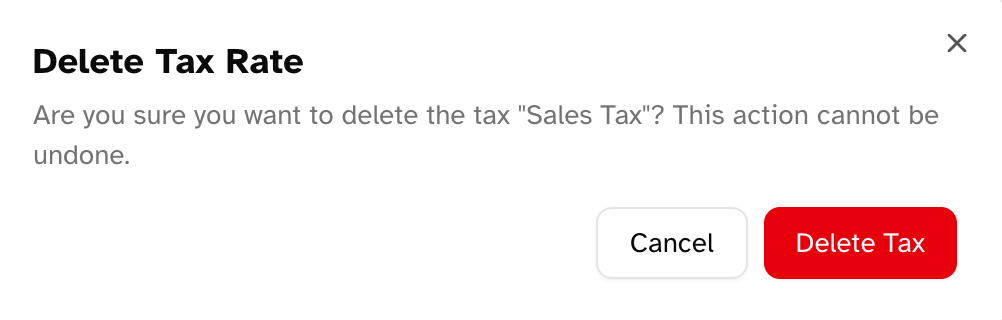
To delete a tax rate:- Locate the tax rate in the list
- Click the trash (delete) icon
- Confirm the deletion in the dialog
- You cannot delete tax rates that are currently in use (have a usage count greater than zero)
- The delete button will be disabled for any tax with an active usage count
- You must remove the tax from all saved items before you can delete it
Tax Rates in Documents
Applying Taxes to Invoices and Estimates
Once you’ve created tax rates, you can apply them in several ways:- Individual Line Items: Apply specific tax rates to individual line items
- Document Level: Apply tax to the subtotal of the entire document
- Multiple Taxes: Apply multiple tax rates to the same item or document
Default Tax Settings
You can configure default tax settings in the Preferences section:- Navigate to Settings → Preferences
- In the Default Values section, select your default tax rate
- Choose your default tax distribution method (per item or document)
Best Practices for Tax Management
Organizing Your Tax Rates
- Keep it simple: Only create the tax rates you regularly use
- Use clear naming: Name taxes in a way that makes their purpose obvious
- Regular review: Periodically review your tax rates to ensure they match current regulations
Tax Compliance Considerations
- Stay updated: Tax rates may change over time; update your rates when regulations change
- Regional variations: If you work across different regions, create separate tax rates for each jurisdiction
- Document history: Blinksale maintains the tax rates applied at the time of document creation
Tax Reporting
Effective tax rate management in Blinksale helps with:- Financial reporting
- Tax filing and compliance
- Ensuring clients are charged the correct tax amount
- Simplifying accounting processes
Troubleshooting
Common Issues
-
Cannot create duplicate tax names
- Each tax name must be unique within your organization
- If you receive an error, try using a more specific name
-
Cannot delete a tax that’s in use
- Remove the tax from all saved items first
- The usage count shows how many items are using the tax
-
Tax rate changes not reflecting in existing documents
- Tax rate changes only affect new documents
- Existing documents maintain the tax rates applied when created
Getting Help
If you need assistance with tax settings:- Check the documentation for guidance on specific tax scenarios
- Consult with your accountant for proper tax setup advice
- Contact Blinksale support for technical assistance with the tax settings feature