

Company Settings
Introduction
Your company information is a fundamental part of your Blinksale account. This information appears on all your invoices, estimates, and other documents you send to clients. Keeping your company details accurate and complete ensures professional communication and proper documentation for tax and legal purposes.Accessing Company Settings
To access your company settings:- Click on the Settings icon in the main sidebar
- Select Company from the settings menu
- You’ll be taken to the company settings page where you can view and edit your information
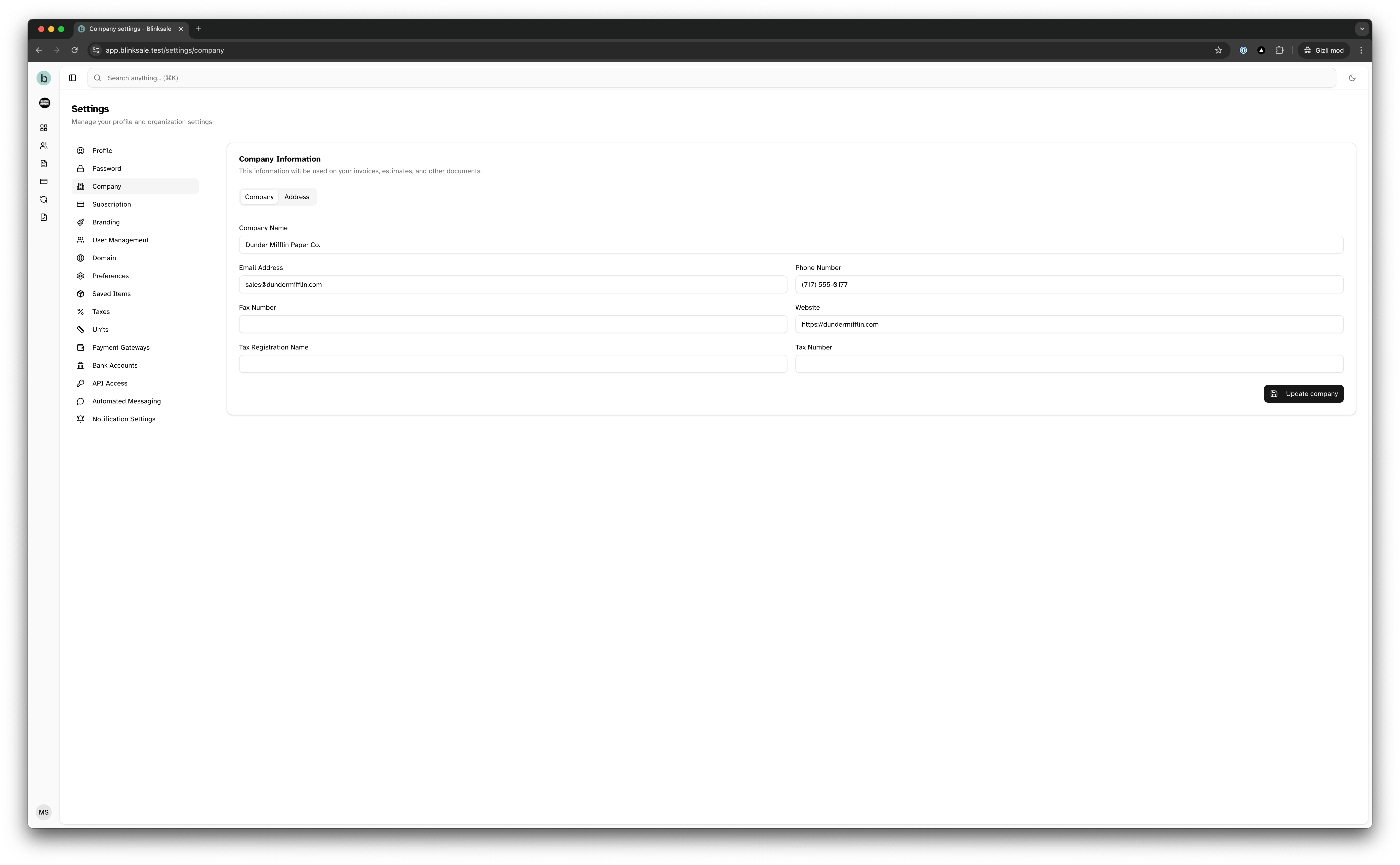
Company Information Overview
The company settings page is organized into two main tabs:- Company: Basic company details and tax information
- Address: Physical location information
Company Tab
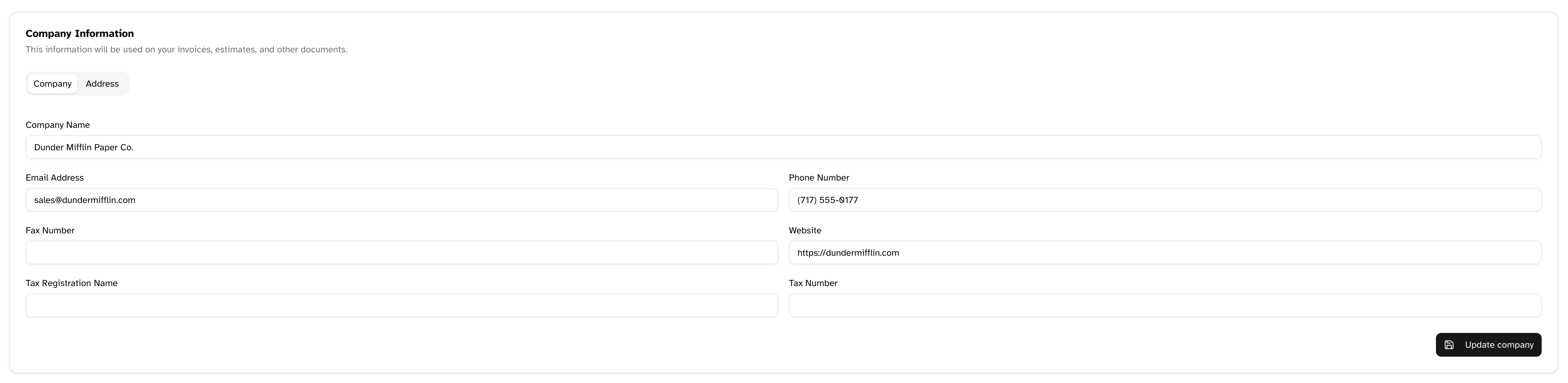
Basic Information
- Company Name (required): Your business’s official name, which will appear on all documents and communications
- Email Address: The primary business email used for communications
- Phone Number: Your business phone number
- Fax Number: Your business fax number, if applicable
- Website: Your company’s website URL (include http:// or https://)
Tax Information
- Tax Registration Name: The legal name of your business as registered with tax authorities (may differ from your company name)
- Tax Number: Your business’s tax identification number (VAT number, EIN, ABN, etc.)
Tax information is particularly important for businesses that need to charge sales tax, VAT, or GST. Correctly setting this information ensures your tax documents are properly formatted.
Address Tab
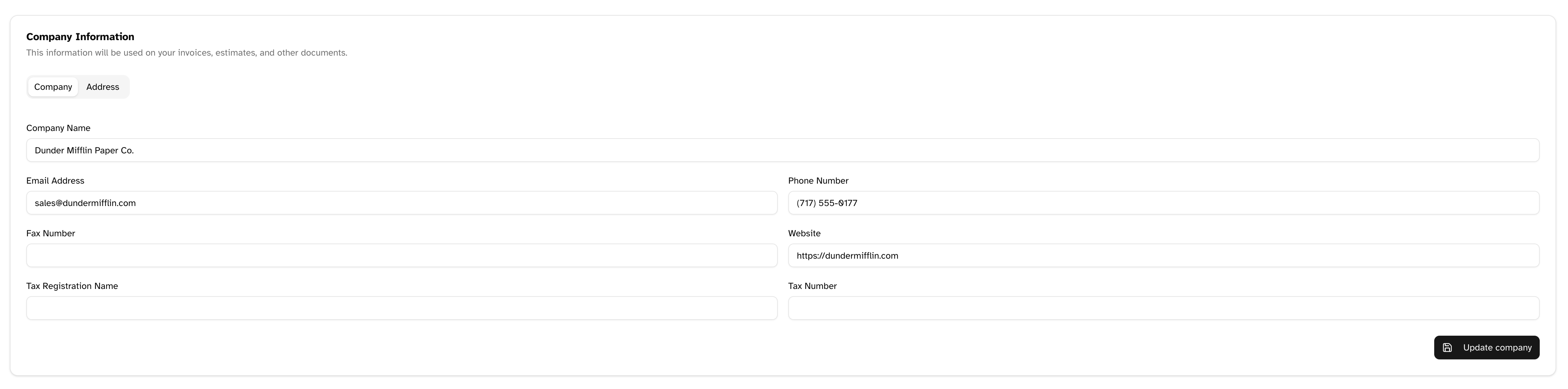
- Address Line 1: Street address, building number, etc.
- Address Line 2: Suite, apartment, unit number, etc. (optional)
- City: City or locality
- Postal/ZIP Code: Postal code
- Country: Select your country from the dropdown list
- State/Province: Select your state or province (options depend on selected country)
When you select a country, the State/Province dropdown will automatically update with relevant options for that country. If your country doesn’t have states or provinces, this field may not be required.
Updating Company Settings
To update your company information:- Navigate to the company settings page
- Edit the fields you wish to update
- Click the Update Company button at the bottom of the form
Why Company Information Matters
Your company information serves several important purposes:Legal Requirements
In many jurisdictions, business documents like invoices must include:- Your business name
- Physical address
- Tax identification number
- Contact information
Tax Compliance
Your tax registration name and number are crucial for:- Tax reporting
- Enabling clients to claim tax deductions or credits
- Ensuring proper tax calculation on international transactions
Best Practices
Keep Information Current
- Update your company information whenever there are changes to your business
- Ensure address details remain accurate if you relocate
- Update tax information if your registration status changes
Include Complete Information
- Fill in all fields, even optional ones, for the most professional appearance
- Include your website and all contact methods to make it easy for clients to reach you
- Verify tax information is correctly formatted for your jurisdiction
Consistent Branding
- Use your official company name consistently
- Ensure the company name matches what appears on your payment accounts
- Consider how your information will appear on documents when entering details
Troubleshooting
Common Issues
Changes not appearing on documents:- If your updated company information isn’t appearing on new documents, try refreshing your browser
- Check if the changes were successfully saved (look for the confirmation message)
- If using a document template, verify it’s pulling from the company settings
- Ensure required fields (Address Line 1, City, Country) are completed
- Format postal/ZIP codes according to your country’s standards
- If using a non-Latin alphabet, ensure compatibility with document templates
- Enter tax numbers without spaces or special characters unless specifically required
- Use proper formatting conventions for your country’s tax identification system