> ## Documentation Index
> Fetch the complete documentation index at: https://docs.blinksale.com/llms.txt
> Use this file to discover all available pages before exploring further.
# Saved Items
> Create and manage frequently used products and services for quicker invoice and estimate generation
## Introduction
The Saved Items Settings page in Blinksale allows you to create and manage a library of frequently used products and services. These saved items can be quickly added to invoices and estimates, saving you time and ensuring consistency in your billing documents. Each saved item can include complete details like pricing, quantity, tax rates, and units of measurement.
## Understanding Saved Items
Saved items are pre-configured products or services that you offer regularly to your clients. They help streamline your invoicing process by:
* Eliminating the need to repeatedly enter the same item details
* Ensuring consistent pricing across documents
* Maintaining uniform descriptions of your offerings
* Applying the correct taxes and units automatically
## Managing Saved Items
### Viewing Your Saved Items
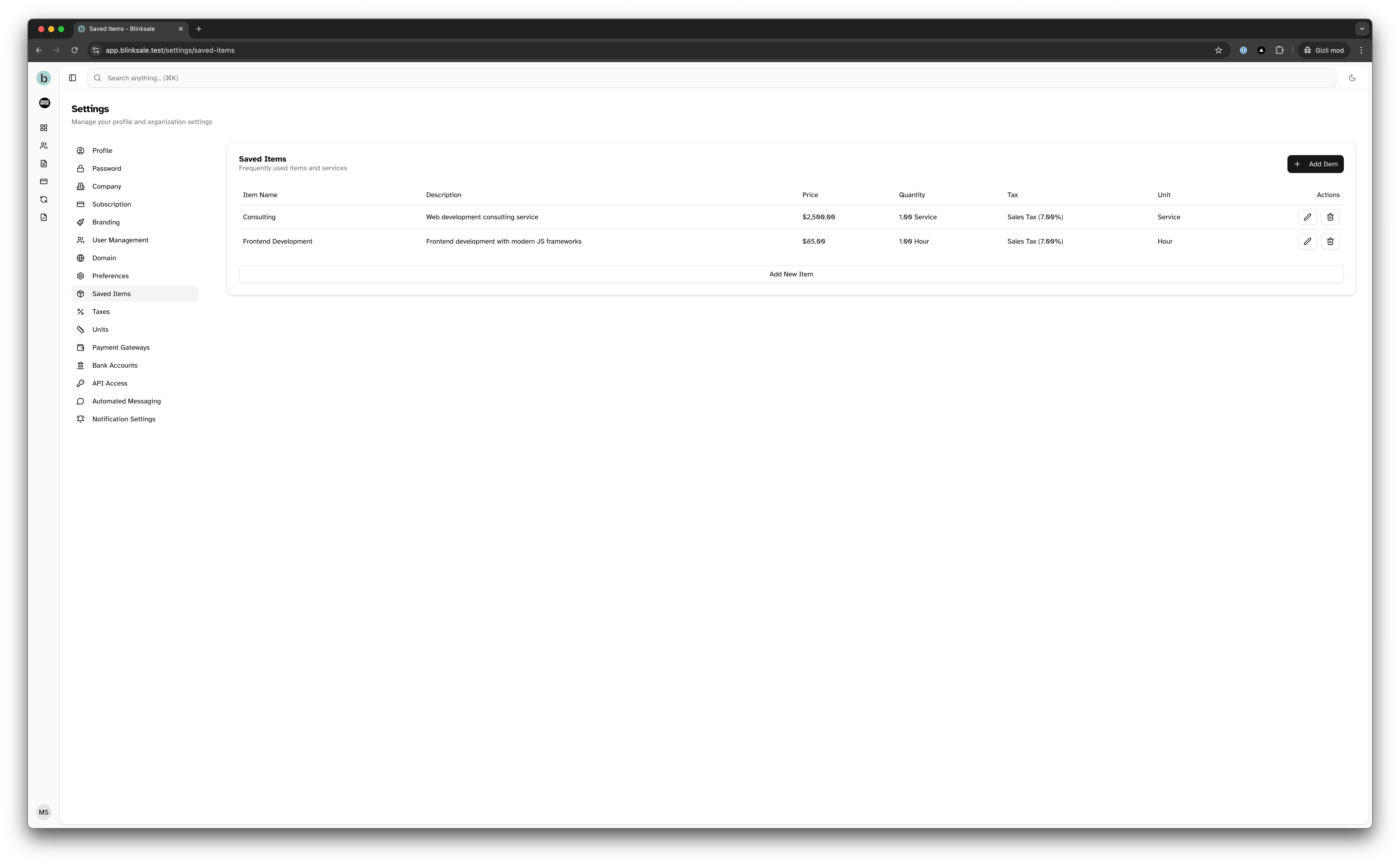
The Saved Items Settings page displays a table of all your configured items, including:
* Item name
* Description
* Price
* Default quantity
* Associated tax rate
* Unit of measurement
* Action buttons for editing or deleting
 ### Creating a New Saved Item
To create a new saved item:
1. Navigate to **Settings → Saved Items**
2. Click the **Add Item** button
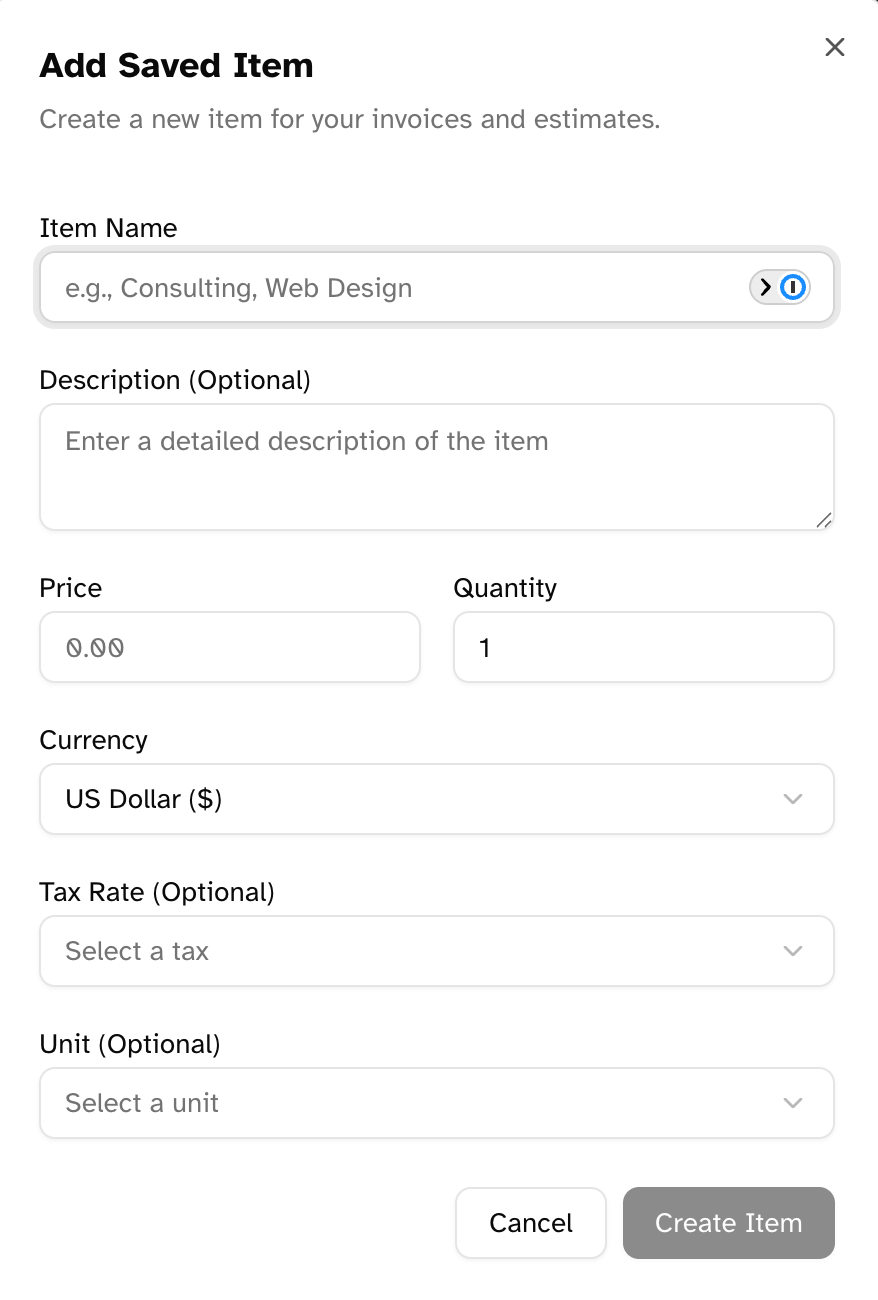
3. Fill in the item details:
* **Name**: A descriptive title for the product or service
* **Description** (optional): Detailed information about the item
* **Price**: The standard rate for the item
* **Quantity**: Default quantity (typically 1)
* **Currency**: The currency used for the item
* **Tax Rate** (optional): An associated tax to apply
* **Unit** (optional): The unit of measurement for the item
4. Click **Create Item**
### Creating a New Saved Item
To create a new saved item:
1. Navigate to **Settings → Saved Items**
2. Click the **Add Item** button
3. Fill in the item details:
* **Name**: A descriptive title for the product or service
* **Description** (optional): Detailed information about the item
* **Price**: The standard rate for the item
* **Quantity**: Default quantity (typically 1)
* **Currency**: The currency used for the item
* **Tax Rate** (optional): An associated tax to apply
* **Unit** (optional): The unit of measurement for the item
4. Click **Create Item**
 **Tips for Creating Saved Items:**
* Use clear, descriptive names that will be recognized by you and your clients
* Include detailed descriptions that clarify exactly what's being provided
* Set standard prices that reflect your regular rates
* Select appropriate tax rates and units to save time when creating invoices
### Editing a Saved Item
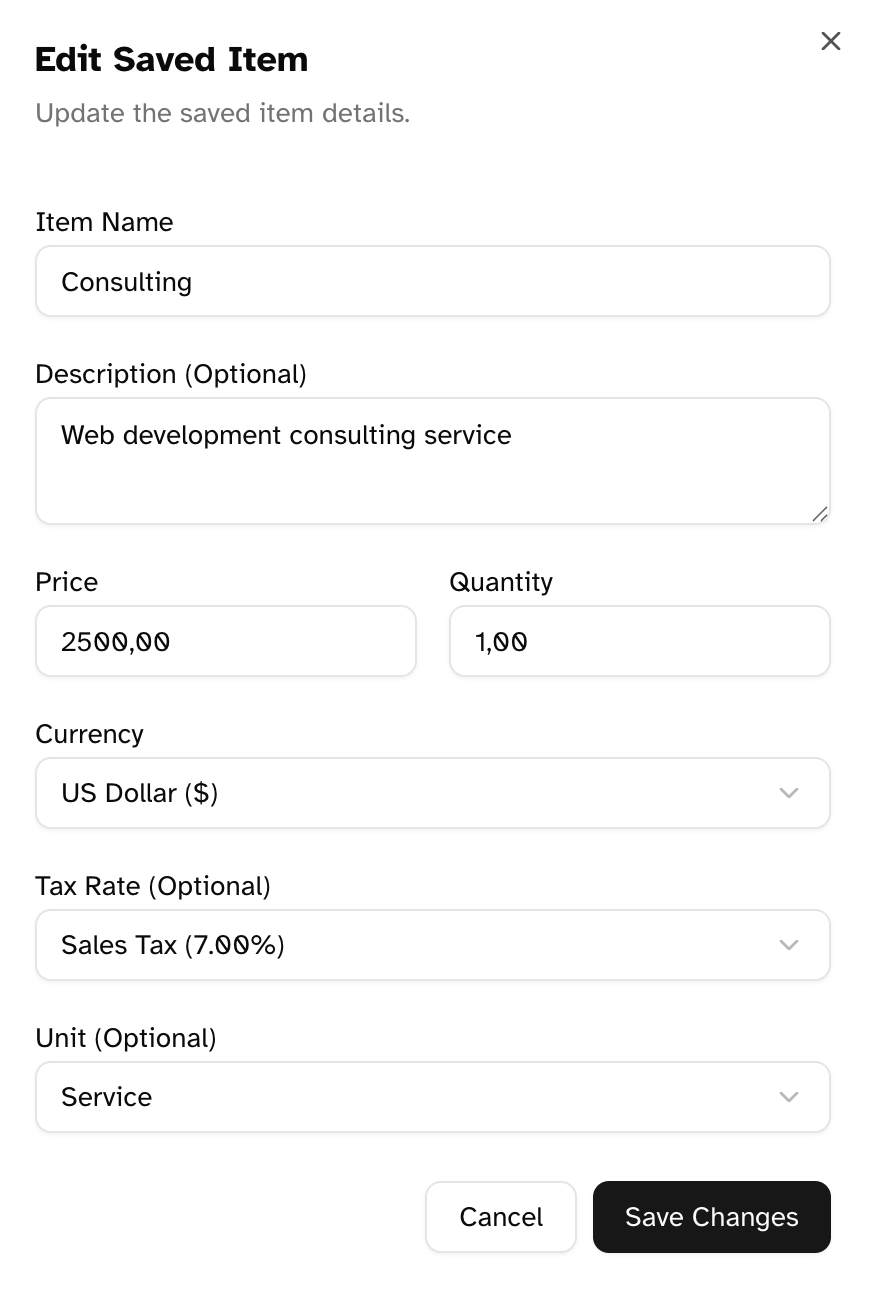
To modify an existing saved item:
1. Locate the item in the list
2. Click the pencil (edit) icon
3. Update any of the item details
4. Click **Save Changes**
**Tips for Creating Saved Items:**
* Use clear, descriptive names that will be recognized by you and your clients
* Include detailed descriptions that clarify exactly what's being provided
* Set standard prices that reflect your regular rates
* Select appropriate tax rates and units to save time when creating invoices
### Editing a Saved Item
To modify an existing saved item:
1. Locate the item in the list
2. Click the pencil (edit) icon
3. Update any of the item details
4. Click **Save Changes**
 **Note:** When you edit a saved item, the changes only affect future uses of the item in new invoices or estimates. Previously created documents will maintain the item details as they were at the time of creation.
### Deleting a Saved Item
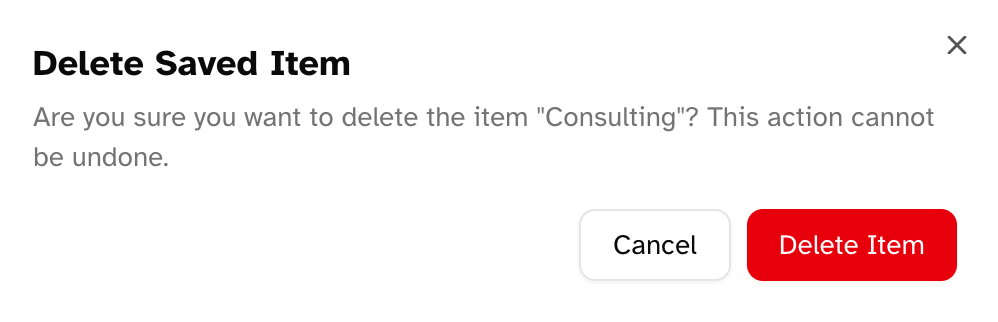
To delete a saved item:
1. Locate the item in the list
2. Click the trash (delete) icon
3. Confirm the deletion in the dialog
**Note:** When you edit a saved item, the changes only affect future uses of the item in new invoices or estimates. Previously created documents will maintain the item details as they were at the time of creation.
### Deleting a Saved Item
To delete a saved item:
1. Locate the item in the list
2. Click the trash (delete) icon
3. Confirm the deletion in the dialog
 **Note:** Deleting a saved item only removes it from your library of available items. It does not affect any existing invoices or estimates that already use the item.
## Using Saved Items in Documents
### Adding Saved Items to Invoices and Estimates
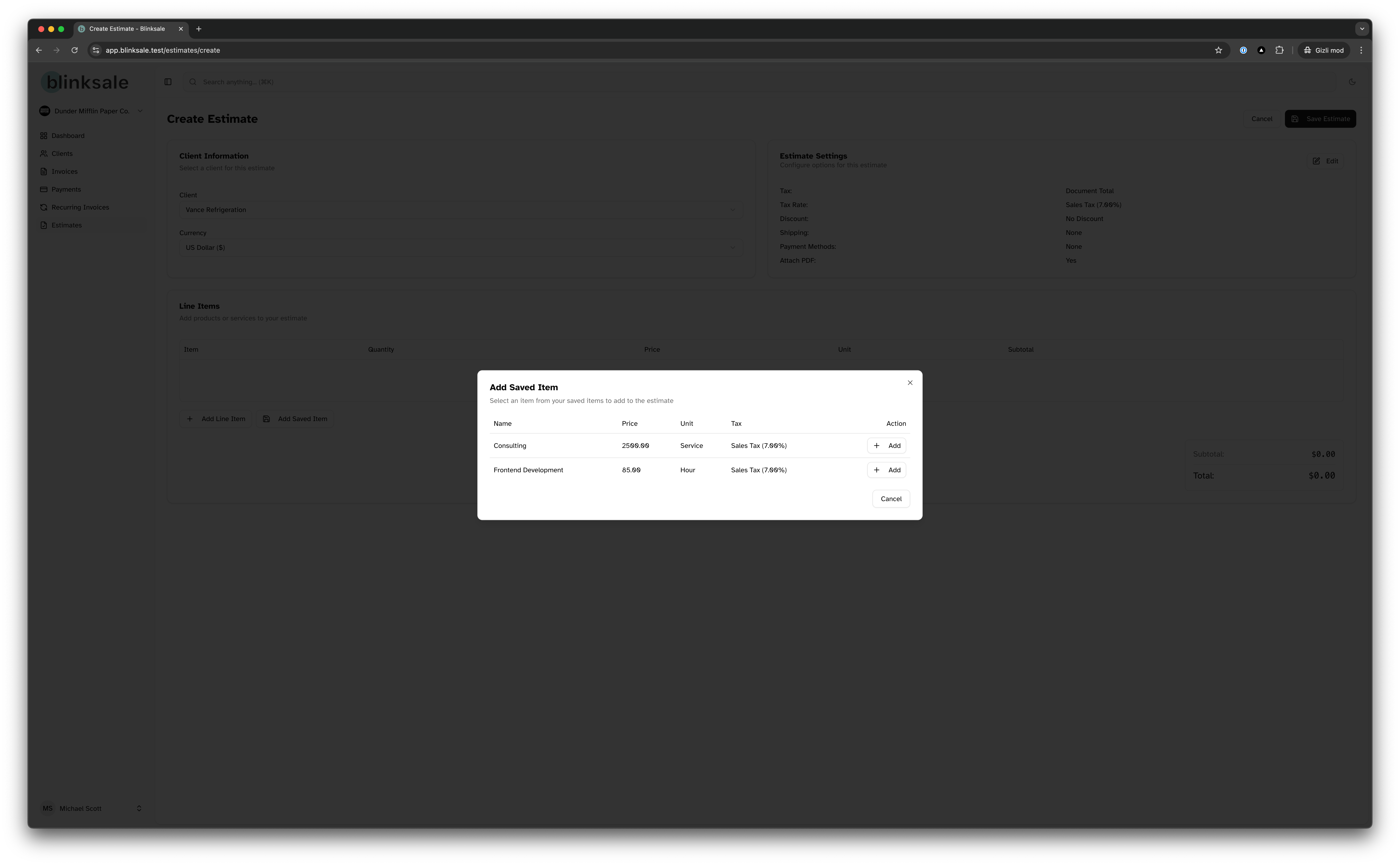
Saved items become available in the line item creation interface when creating or editing invoices and estimates:
1. Begin creating a new invoice or estimate
2. In the line items section, look for a "Select Saved Item" option
3. Choose the desired item from the dropdown
4. The item details (name, description, price, quantity, tax, and unit) are automatically populated
5. Adjust any values as needed for this specific instance
6. Add additional items as required
**Note:** Deleting a saved item only removes it from your library of available items. It does not affect any existing invoices or estimates that already use the item.
## Using Saved Items in Documents
### Adding Saved Items to Invoices and Estimates
Saved items become available in the line item creation interface when creating or editing invoices and estimates:
1. Begin creating a new invoice or estimate
2. In the line items section, look for a "Select Saved Item" option
3. Choose the desired item from the dropdown
4. The item details (name, description, price, quantity, tax, and unit) are automatically populated
5. Adjust any values as needed for this specific instance
6. Add additional items as required
 ### Benefits of Using Saved Items
Using saved items offers several advantages:
1. **Time Efficiency**: Quickly add complete items rather than manually entering details each time
2. **Consistency**: Maintain uniform pricing and descriptions across all your documents
3. **Reduced Errors**: Eliminate typos and pricing mistakes that can occur with manual entry
4. **Professional Appearance**: Present consistent, well-described services to your clients
## Best Practices for Saved Items Management
### Organizing Your Items
* **Consistent Naming**: Develop a clear naming convention for easy identification
* **Logical Grouping**: Consider prefixing similar items (e.g., "Consulting: Strategy" and "Consulting: Implementation")
* **Complete Details**: Always include thorough descriptions to avoid confusion
* **Regular Review**: Periodically audit your saved items to update pricing and details
### Strategies for Different Business Types
#### Service-Based Businesses
* Create items based on service types or hourly rates
* Include detailed scope descriptions
* Consider creating items at different hourly rates (standard, rush, weekend)
#### Product-Based Businesses
* Include product codes or SKUs in item names
* Specify exact quantities and units
* Consider creating bundles for commonly purchased combinations
#### Mixed Businesses
* Clearly differentiate between product and service items
* Create separate items for products with associated service fees
* Use consistent formatting to distinguish between types
## Troubleshooting
### Common Issues
1. **Cannot create duplicate item names**
* Each saved item name must be unique within your organization
* Use more specific names or include identifying details
2. **Currency mismatches**
* Saved items retain their configured currency
* When adding to an invoice with a different currency, you'll need to adjust the price
3. **Changes not reflected in existing documents**
* Updates to saved items only affect new documents
* Existing documents maintain the item details as they were when created
### Getting Help
If you need assistance with saved items:
1. Review this documentation for detailed guidance
2. Use the search functionality to find specific items in large libraries
3. Contact Blinksale support for technical help with the saved items feature
## Advanced Tips
### Item Templates for Project Types
Create template items that represent entire project phases or common service packages. For example:
* **Web Design Package**: A complete package with description of all included services
* **Monthly Retainer**: Standard monthly service with detailed deliverables
* **Product Bundle**: Commonly sold together items as a single line item
### Dynamic Pricing Strategies
For services with variable pricing:
1. Create multiple versions of similar items at different price points
2. Use descriptive names that clearly indicate the pricing tier
3. Include notes about when to use each variation
By effectively managing your saved items in Blinksale, you'll create a valuable library of products and services that speeds up your invoicing process and ensures consistent, professional-looking documents for your clients.
### Benefits of Using Saved Items
Using saved items offers several advantages:
1. **Time Efficiency**: Quickly add complete items rather than manually entering details each time
2. **Consistency**: Maintain uniform pricing and descriptions across all your documents
3. **Reduced Errors**: Eliminate typos and pricing mistakes that can occur with manual entry
4. **Professional Appearance**: Present consistent, well-described services to your clients
## Best Practices for Saved Items Management
### Organizing Your Items
* **Consistent Naming**: Develop a clear naming convention for easy identification
* **Logical Grouping**: Consider prefixing similar items (e.g., "Consulting: Strategy" and "Consulting: Implementation")
* **Complete Details**: Always include thorough descriptions to avoid confusion
* **Regular Review**: Periodically audit your saved items to update pricing and details
### Strategies for Different Business Types
#### Service-Based Businesses
* Create items based on service types or hourly rates
* Include detailed scope descriptions
* Consider creating items at different hourly rates (standard, rush, weekend)
#### Product-Based Businesses
* Include product codes or SKUs in item names
* Specify exact quantities and units
* Consider creating bundles for commonly purchased combinations
#### Mixed Businesses
* Clearly differentiate between product and service items
* Create separate items for products with associated service fees
* Use consistent formatting to distinguish between types
## Troubleshooting
### Common Issues
1. **Cannot create duplicate item names**
* Each saved item name must be unique within your organization
* Use more specific names or include identifying details
2. **Currency mismatches**
* Saved items retain their configured currency
* When adding to an invoice with a different currency, you'll need to adjust the price
3. **Changes not reflected in existing documents**
* Updates to saved items only affect new documents
* Existing documents maintain the item details as they were when created
### Getting Help
If you need assistance with saved items:
1. Review this documentation for detailed guidance
2. Use the search functionality to find specific items in large libraries
3. Contact Blinksale support for technical help with the saved items feature
## Advanced Tips
### Item Templates for Project Types
Create template items that represent entire project phases or common service packages. For example:
* **Web Design Package**: A complete package with description of all included services
* **Monthly Retainer**: Standard monthly service with detailed deliverables
* **Product Bundle**: Commonly sold together items as a single line item
### Dynamic Pricing Strategies
For services with variable pricing:
1. Create multiple versions of similar items at different price points
2. Use descriptive names that clearly indicate the pricing tier
3. Include notes about when to use each variation
By effectively managing your saved items in Blinksale, you'll create a valuable library of products and services that speeds up your invoicing process and ensures consistent, professional-looking documents for your clients.