> ## Documentation Index
> Fetch the complete documentation index at: https://docs.blinksale.com/llms.txt
> Use this file to discover all available pages before exploring further.
# Preferences
> Configure default values, formatting options, and payment settings for your entire organization
## Introduction
The Preferences Settings in Blinksale serve as the central control panel for configuring how your invoices, estimates, and other documents look and function. These settings establish organization-wide defaults that ensure consistency across all your financial documents while saving you time during document creation. By carefully configuring your preferences, you can create a streamlined workflow that matches your business needs.
## Accessing Preferences Settings
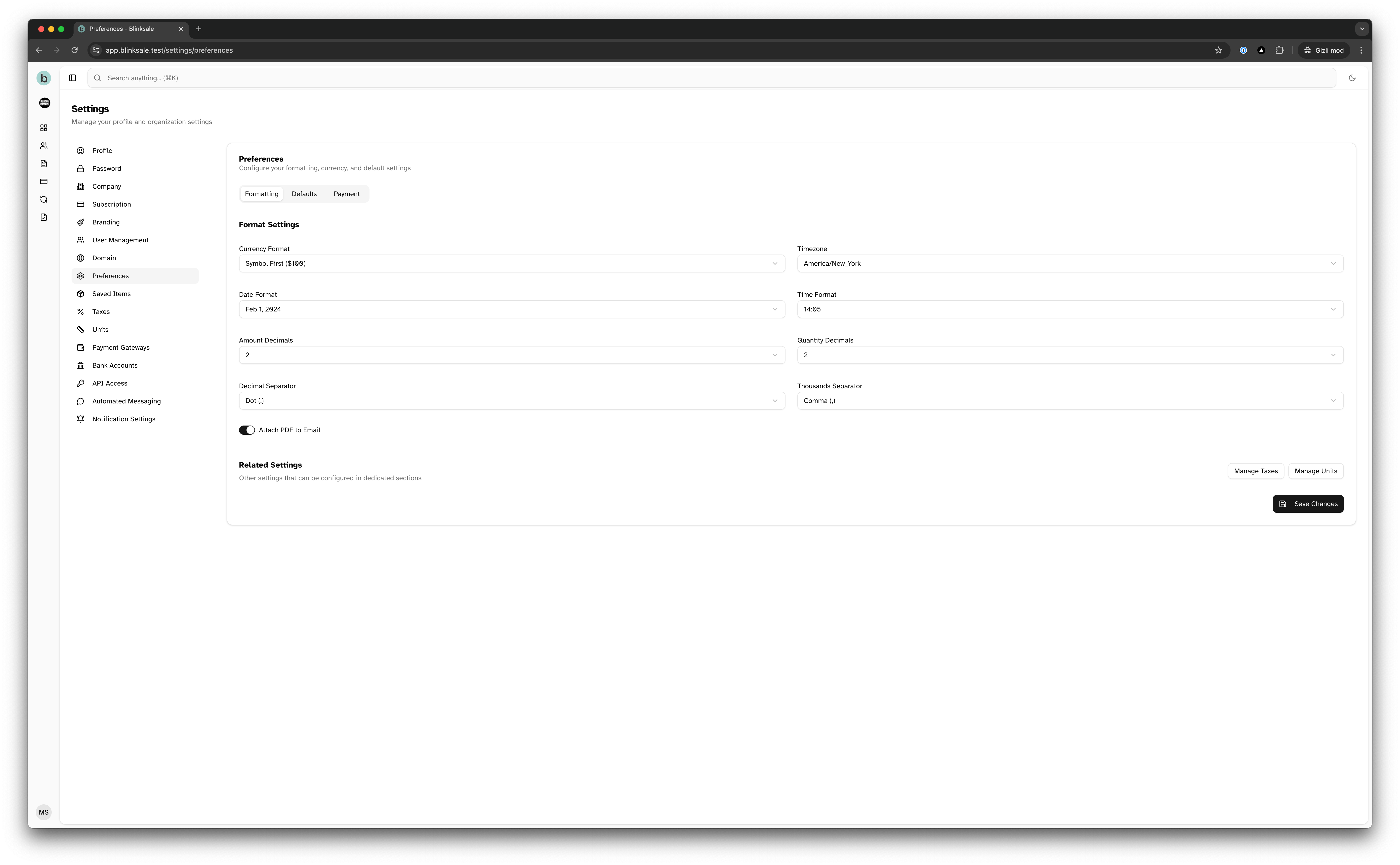
To access your preferences settings:
1. Click on the **Settings** icon in the main sidebar
2. Select **Preferences** from the settings menu
3. You'll be taken to the preferences settings page where you can configure various options
 ## Preferences Overview
The preferences settings page is organized into three main tabs:
* **Formatting**: Options that control how dates, numbers, and currencies appear
* **Defaults**: Default values for currency, units, taxes, and discounts
* **Payment**: Settings for payment terms, late fees, and payment methods
Each tab contains related settings that work together to create a consistent experience across your Blinksale account.
## Formatting Settings
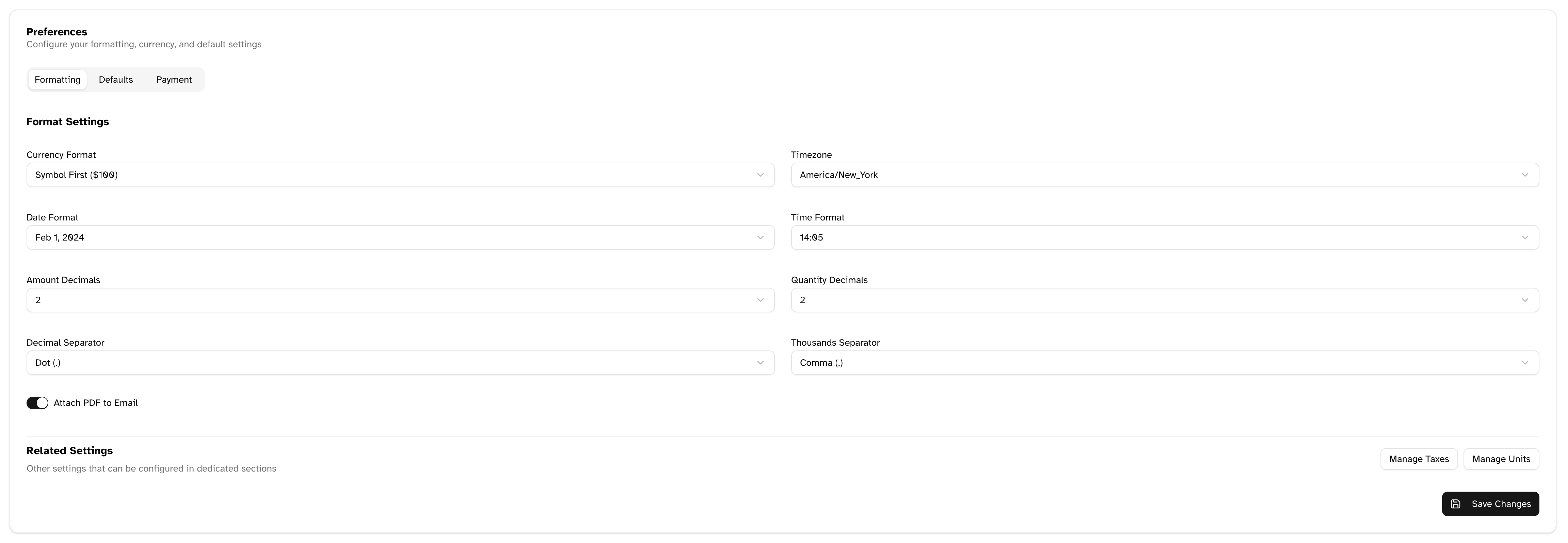
The Formatting tab allows you to configure how dates, numbers, and currencies appear on your documents.
## Preferences Overview
The preferences settings page is organized into three main tabs:
* **Formatting**: Options that control how dates, numbers, and currencies appear
* **Defaults**: Default values for currency, units, taxes, and discounts
* **Payment**: Settings for payment terms, late fees, and payment methods
Each tab contains related settings that work together to create a consistent experience across your Blinksale account.
## Formatting Settings
The Formatting tab allows you to configure how dates, numbers, and currencies appear on your documents.
 ### Currency Format
Choose how currency values appear on your documents:
* **Symbol Before Value**: \$1,234.56 (e.g., USD, CAD)
* **Symbol After Value**: 1,234.56€ (e.g., EUR)
* **Code Before Value**: USD 1,234.56
* **Code After Value**: 1,234.56 USD
### Date Format
Select your preferred date format:
* **MM/DD/YYYY**: 05/15/2025 (US style)
* **DD/MM/YYYY**: 15/05/2025 (European style)
* **YYYY-MM-DD**: 2025-05-15 (ISO format)
* **DD.MM.YYYY**: 15.05.2025
* **DD-MM-YYYY**: 15-05-2025
### Time Format
Choose between:
* **12-hour format**: 3:45 PM
* **24-hour format**: 15:45
### Timezone
Select your business timezone to ensure that all dates and times are correctly displayed according to your location.
### Number Formatting
Configure how numbers appear throughout your documents:
* **Amount Decimals**: The number of decimal places for monetary values (0, 1, or 2)
* **Quantity Decimals**: The number of decimal places for quantities (0, 1, or 2)
* **Decimal Separator**: Choose between period (.) or comma (,)
* **Thousands Separator**: Choose between comma (,), period (.), space, or none
Match your number formatting to your region's conventions for better client recognition. For example, many European countries use a comma as the decimal separator and a period or space for thousands.
### PDF Attachment
Toggle whether to automatically attach PDF versions of invoices and estimates to emails sent to clients.
## Default Values
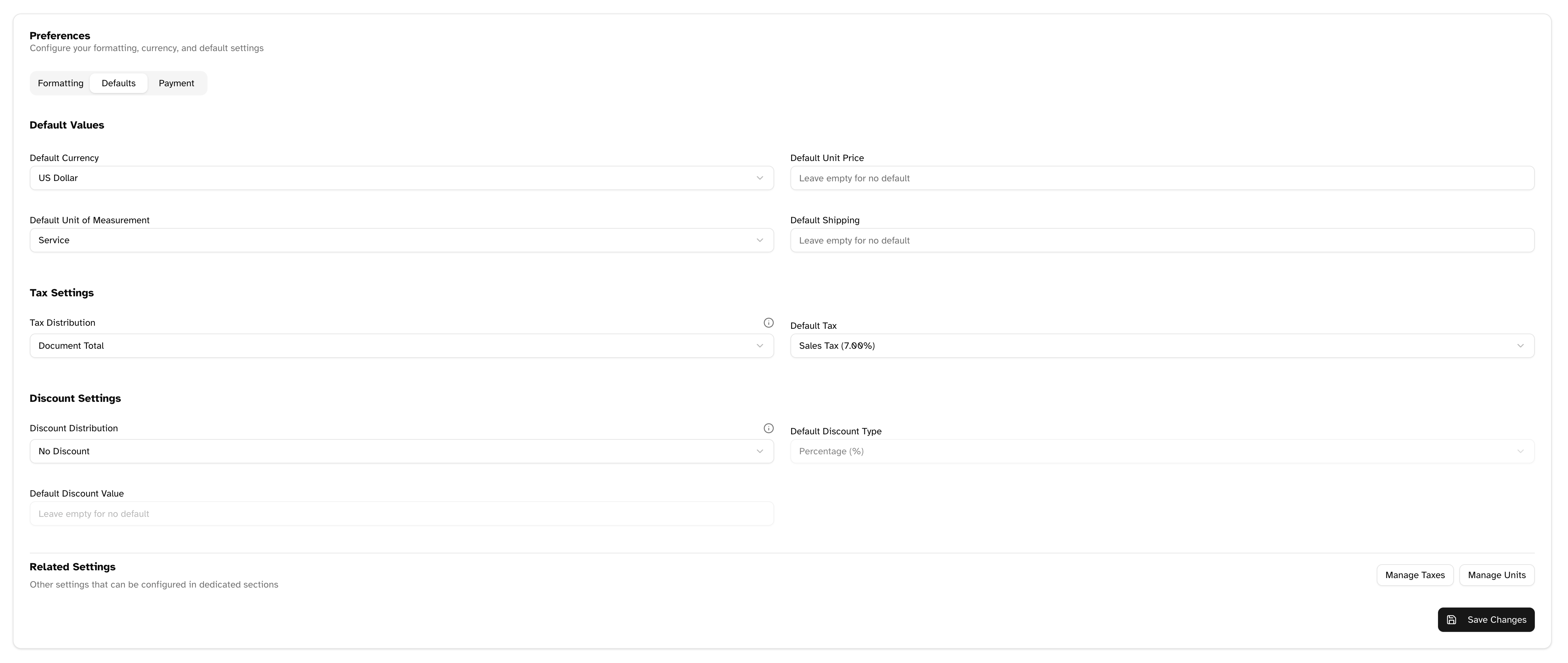
The Defaults tab allows you to set standard values that will be automatically applied to new invoices and estimates, saving you time during document creation.
### Currency Format
Choose how currency values appear on your documents:
* **Symbol Before Value**: \$1,234.56 (e.g., USD, CAD)
* **Symbol After Value**: 1,234.56€ (e.g., EUR)
* **Code Before Value**: USD 1,234.56
* **Code After Value**: 1,234.56 USD
### Date Format
Select your preferred date format:
* **MM/DD/YYYY**: 05/15/2025 (US style)
* **DD/MM/YYYY**: 15/05/2025 (European style)
* **YYYY-MM-DD**: 2025-05-15 (ISO format)
* **DD.MM.YYYY**: 15.05.2025
* **DD-MM-YYYY**: 15-05-2025
### Time Format
Choose between:
* **12-hour format**: 3:45 PM
* **24-hour format**: 15:45
### Timezone
Select your business timezone to ensure that all dates and times are correctly displayed according to your location.
### Number Formatting
Configure how numbers appear throughout your documents:
* **Amount Decimals**: The number of decimal places for monetary values (0, 1, or 2)
* **Quantity Decimals**: The number of decimal places for quantities (0, 1, or 2)
* **Decimal Separator**: Choose between period (.) or comma (,)
* **Thousands Separator**: Choose between comma (,), period (.), space, or none
Match your number formatting to your region's conventions for better client recognition. For example, many European countries use a comma as the decimal separator and a period or space for thousands.
### PDF Attachment
Toggle whether to automatically attach PDF versions of invoices and estimates to emails sent to clients.
## Default Values
The Defaults tab allows you to set standard values that will be automatically applied to new invoices and estimates, saving you time during document creation.
 ### Currency Settings
* **Default Currency**: The primary currency you use for transactions (USD, EUR, GBP, etc.)
### Default Line Item Values
* **Default Unit Price**: The standard price that will pre-populate for new line items
* **Default Unit of Measurement**: The standard unit (hour, piece, etc.) that will be applied to new line items
* **Default Shipping**: The standard shipping amount to apply to documents
### Tax Settings
* **Tax Distribution**:
* **No Tax**: Don't apply taxes to any items
* **Per Item**: Apply tax to each line item individually
* **Per Document**: Apply tax to the document total
* **Default Tax**: Select a pre-configured tax rate to apply automatically to new documents
Your default tax selection will only appear if you have configured taxes in the Tax Settings section, and if you've selected a tax distribution method other than "No Tax".
### Discount Settings
* **Discount Distribution**:
* **No Discount**: Don't apply discounts to any items
* **Per Item**: Apply discount to each line item individually
* **Per Document**: Apply discount to the document total
* **Default Discount Type**:
* **Fixed Amount**: A specific monetary value (e.g., \$50 off)
* **Percentage**: A percentage of the item or document value (e.g., 10% off)
* **Default Discount Value**: The standard discount amount (either a monetary value or percentage)
### Currency Settings
* **Default Currency**: The primary currency you use for transactions (USD, EUR, GBP, etc.)
### Default Line Item Values
* **Default Unit Price**: The standard price that will pre-populate for new line items
* **Default Unit of Measurement**: The standard unit (hour, piece, etc.) that will be applied to new line items
* **Default Shipping**: The standard shipping amount to apply to documents
### Tax Settings
* **Tax Distribution**:
* **No Tax**: Don't apply taxes to any items
* **Per Item**: Apply tax to each line item individually
* **Per Document**: Apply tax to the document total
* **Default Tax**: Select a pre-configured tax rate to apply automatically to new documents
Your default tax selection will only appear if you have configured taxes in the Tax Settings section, and if you've selected a tax distribution method other than "No Tax".
### Discount Settings
* **Discount Distribution**:
* **No Discount**: Don't apply discounts to any items
* **Per Item**: Apply discount to each line item individually
* **Per Document**: Apply discount to the document total
* **Default Discount Type**:
* **Fixed Amount**: A specific monetary value (e.g., \$50 off)
* **Percentage**: A percentage of the item or document value (e.g., 10% off)
* **Default Discount Value**: The standard discount amount (either a monetary value or percentage)
 ## Payment Settings
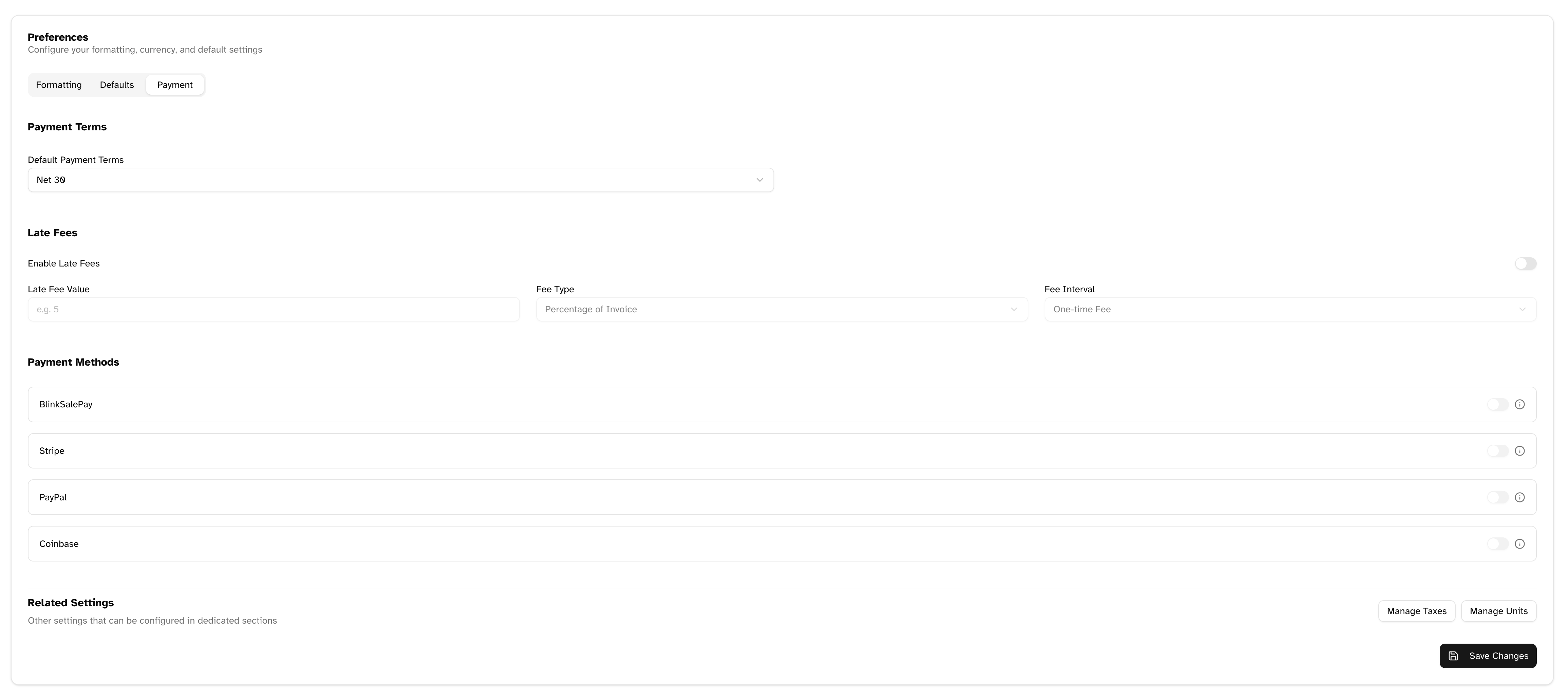
The Payment tab allows you to configure payment terms, late fees, and payment methods for your invoices.
## Payment Settings
The Payment tab allows you to configure payment terms, late fees, and payment methods for your invoices.
 ### Payment Terms
Select the default payment terms for your invoices:
* **Due on Receipt**: Payment is due immediately
* **Net 7**: Payment is due within 7 days
* **Net 14**: Payment is due within 14 days
* **Net 30**: Payment is due within 30 days
* **Net 60**: Payment is due within 60 days
* **Net 90**: Payment is due within 90 days
* **Custom**: Specify your own payment terms
### Late Fees
Configure automatic late fee calculations for overdue invoices:
1. **Enable Late Fees**: Toggle whether late fees should be applied to overdue invoices
2. **Late Fee Value**: The amount to charge (either a fixed amount or percentage)
3. **Fee Type**:
* **Fixed Amount**: A specific monetary value (e.g., \$25)
* **Percentage**: A percentage of the invoice total (e.g., 2%)
4. **Fee Interval**:
* **One-time**: Apply the fee once when the invoice becomes overdue
* **Daily**: Apply the fee for each day the invoice is overdue
* **Weekly**: Apply the fee for each week the invoice is overdue
* **Monthly**: Apply the fee for each month the invoice is overdue
Be sure to check local regulations regarding late fees. Some jurisdictions limit the amount and frequency of late fees that can be charged on overdue invoices.
### Payment Methods
Enable or disable different payment methods for your invoices:
* **BlinkSalePay**: Blinksale's integrated payment solution
* **Stripe**: Accept credit card payments through Stripe
* **PayPal**: Accept payments through PayPal
* **Coinbase**: Accept cryptocurrency payments through Coinbase Commerce
Payment methods must be connected and configured in the Payment Gateways settings before they can be enabled here. If a payment gateway shows as disabled, click on the info icon for more details.
## Related Settings
At the bottom of the Preferences page, you'll find quick links to related settings that complement your preferences:
* **Manage Taxes**: Create and configure tax rates for different regions or types of products
* **Manage Units**: Set up different units of measurement for your products or services
## Saving Your Preferences
After making changes to your preferences:
1. Review your changes in each tab
2. Click the **Save Changes** button at the bottom of the page
3. You'll see a confirmation message when your changes are successfully saved
Preferences changes apply to new documents created after the changes are saved. Existing documents will maintain their original formatting and settings.
## How Preferences Affect Your Workflow
Understanding how your preference settings impact your workflow can help you configure them optimally:
### Document Creation
* When you create new invoices or estimates, all default values (currency, units, taxes, discounts) will be pre-filled according to your preferences
* This saves time by reducing the amount of information you need to enter for each document
* You can still override these defaults on a per-document basis when needed
### Document Appearance
* Formatting preferences ensure consistent number, date, and currency display across all documents
* This creates a professional appearance and reduces confusion for your clients
* Regional formatting options help ensure your documents meet local expectations
### Payment Processing
* Payment preferences streamline the collection process by establishing clear terms
* Enabled payment methods appear as options for clients when they view invoices
* Late fee settings help encourage timely payment and automate fee calculations
## Best Practices
### Formatting Best Practices
* Choose date and number formats that match your clients' expectations in their region
* Ensure decimal and thousands separators are consistent with your currency conventions
* Use clear time formats that match your business communications style
### Defaults Best Practices
* Set defaults that reflect your most common transaction types
* Review and update defaults periodically as your business pricing or practices change
* Consider creating client-specific defaults for major clients with unique requirements
### Payment Best Practices
* Set payment terms that balance your cash flow needs with client expectations
* Configure late fees that are substantial enough to encourage timely payment without being punitive
* Enable multiple payment methods to make it as easy as possible for clients to pay you
## Troubleshooting
### Common Issues
**Changes not applying to new documents:**
* Ensure you clicked "Save Changes" after making modifications
* Check if client-specific settings are overriding your global preferences
* Try refreshing your browser if changes aren't appearing
**Payment methods not appearing:**
* Verify payment gateways are properly connected in Payment Gateway settings
* Ensure the payment methods are toggled on in the Payment tab
* Check that your account subscription includes the payment methods you're trying to enable
**Number formatting issues:**
* Make sure decimal and thousands separators are different symbols
* Check that your amount and quantity decimals are appropriate for your business type
* Verify your currency format matches the actual currency you've selected
By carefully configuring your preferences settings, you can create a streamlined, professional invoicing experience that saves time and reflects your business brand consistently across all client communications.
### Payment Terms
Select the default payment terms for your invoices:
* **Due on Receipt**: Payment is due immediately
* **Net 7**: Payment is due within 7 days
* **Net 14**: Payment is due within 14 days
* **Net 30**: Payment is due within 30 days
* **Net 60**: Payment is due within 60 days
* **Net 90**: Payment is due within 90 days
* **Custom**: Specify your own payment terms
### Late Fees
Configure automatic late fee calculations for overdue invoices:
1. **Enable Late Fees**: Toggle whether late fees should be applied to overdue invoices
2. **Late Fee Value**: The amount to charge (either a fixed amount or percentage)
3. **Fee Type**:
* **Fixed Amount**: A specific monetary value (e.g., \$25)
* **Percentage**: A percentage of the invoice total (e.g., 2%)
4. **Fee Interval**:
* **One-time**: Apply the fee once when the invoice becomes overdue
* **Daily**: Apply the fee for each day the invoice is overdue
* **Weekly**: Apply the fee for each week the invoice is overdue
* **Monthly**: Apply the fee for each month the invoice is overdue
Be sure to check local regulations regarding late fees. Some jurisdictions limit the amount and frequency of late fees that can be charged on overdue invoices.
### Payment Methods
Enable or disable different payment methods for your invoices:
* **BlinkSalePay**: Blinksale's integrated payment solution
* **Stripe**: Accept credit card payments through Stripe
* **PayPal**: Accept payments through PayPal
* **Coinbase**: Accept cryptocurrency payments through Coinbase Commerce
Payment methods must be connected and configured in the Payment Gateways settings before they can be enabled here. If a payment gateway shows as disabled, click on the info icon for more details.
## Related Settings
At the bottom of the Preferences page, you'll find quick links to related settings that complement your preferences:
* **Manage Taxes**: Create and configure tax rates for different regions or types of products
* **Manage Units**: Set up different units of measurement for your products or services
## Saving Your Preferences
After making changes to your preferences:
1. Review your changes in each tab
2. Click the **Save Changes** button at the bottom of the page
3. You'll see a confirmation message when your changes are successfully saved
Preferences changes apply to new documents created after the changes are saved. Existing documents will maintain their original formatting and settings.
## How Preferences Affect Your Workflow
Understanding how your preference settings impact your workflow can help you configure them optimally:
### Document Creation
* When you create new invoices or estimates, all default values (currency, units, taxes, discounts) will be pre-filled according to your preferences
* This saves time by reducing the amount of information you need to enter for each document
* You can still override these defaults on a per-document basis when needed
### Document Appearance
* Formatting preferences ensure consistent number, date, and currency display across all documents
* This creates a professional appearance and reduces confusion for your clients
* Regional formatting options help ensure your documents meet local expectations
### Payment Processing
* Payment preferences streamline the collection process by establishing clear terms
* Enabled payment methods appear as options for clients when they view invoices
* Late fee settings help encourage timely payment and automate fee calculations
## Best Practices
### Formatting Best Practices
* Choose date and number formats that match your clients' expectations in their region
* Ensure decimal and thousands separators are consistent with your currency conventions
* Use clear time formats that match your business communications style
### Defaults Best Practices
* Set defaults that reflect your most common transaction types
* Review and update defaults periodically as your business pricing or practices change
* Consider creating client-specific defaults for major clients with unique requirements
### Payment Best Practices
* Set payment terms that balance your cash flow needs with client expectations
* Configure late fees that are substantial enough to encourage timely payment without being punitive
* Enable multiple payment methods to make it as easy as possible for clients to pay you
## Troubleshooting
### Common Issues
**Changes not applying to new documents:**
* Ensure you clicked "Save Changes" after making modifications
* Check if client-specific settings are overriding your global preferences
* Try refreshing your browser if changes aren't appearing
**Payment methods not appearing:**
* Verify payment gateways are properly connected in Payment Gateway settings
* Ensure the payment methods are toggled on in the Payment tab
* Check that your account subscription includes the payment methods you're trying to enable
**Number formatting issues:**
* Make sure decimal and thousands separators are different symbols
* Check that your amount and quantity decimals are appropriate for your business type
* Verify your currency format matches the actual currency you've selected
By carefully configuring your preferences settings, you can create a streamlined, professional invoicing experience that saves time and reflects your business brand consistently across all client communications.