> ## Documentation Index
> Fetch the complete documentation index at: https://docs.blinksale.com/llms.txt
> Use this file to discover all available pages before exploring further.
# Bank Accounts
> Manage your bank accounts for receiving payments via bank transfer
## Introduction
The Bank Accounts Settings page in Blinksale allows you to manage the bank accounts you use for receiving payments from your clients. Setting up bank accounts enables you to include complete banking details on your invoices, making it easier for clients to pay you via bank transfer. You can add multiple accounts for different currencies or purposes and designate a primary account.
## Understanding Bank Accounts in Blinksale
Bank accounts in Blinksale serve as a way to provide consistent banking information to your clients. When properly configured, your bank details can:
* Appear automatically on invoices that offer bank transfer as a payment option
* Support multiple currencies for international business
* Include all necessary details for domestic and international transfers
* Provide proper routing information based on your country's banking system
## Managing Bank Accounts
### Viewing Your Bank Accounts
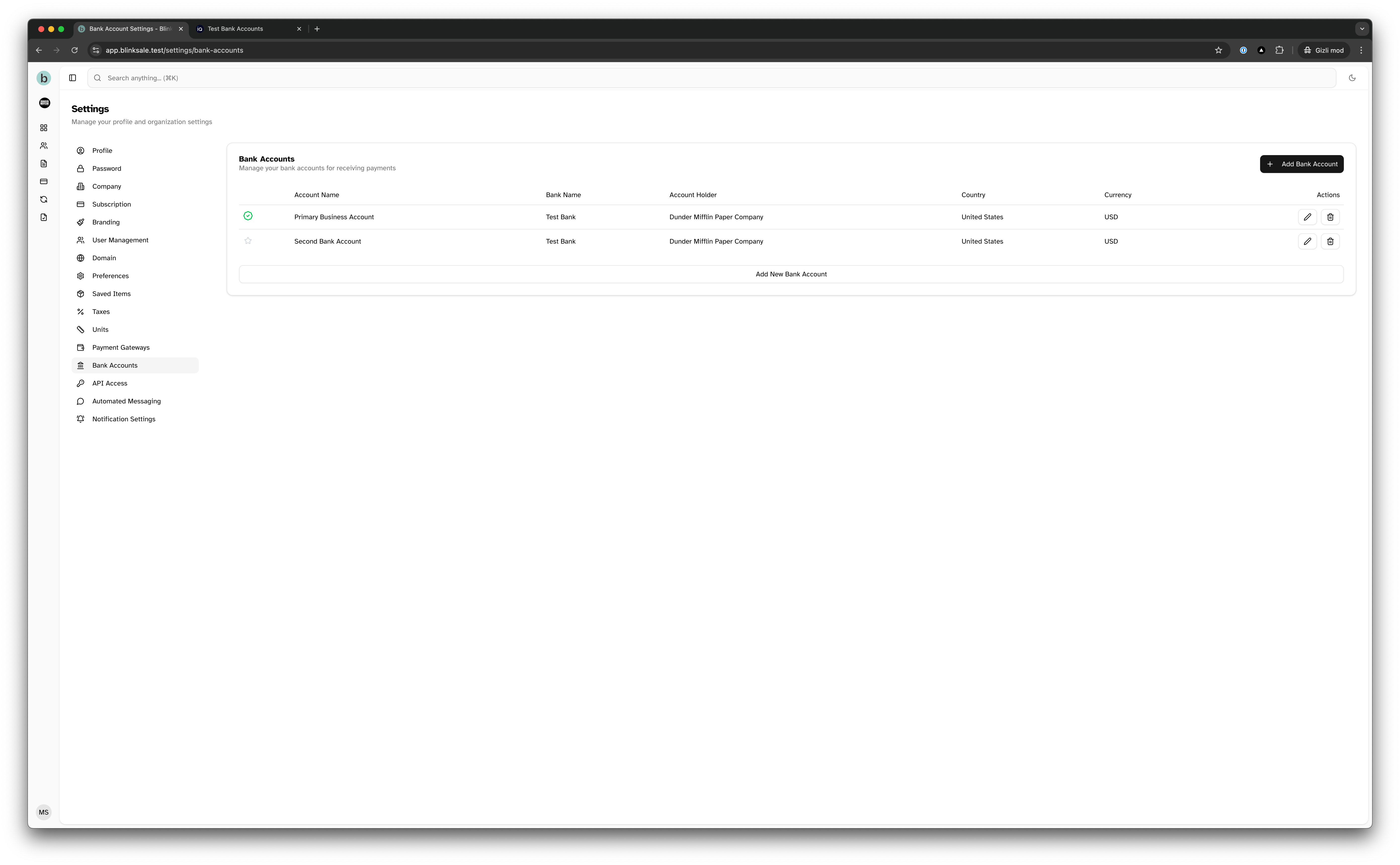
The Bank Accounts Settings page displays a table of all your configured bank accounts, including:
* Primary account indicator (checkmark)
* Account name
* Bank name
* Account holder name
* Country
* Currency
* Action buttons for editing, deleting, or setting as primary
 ### Creating a New Bank Account
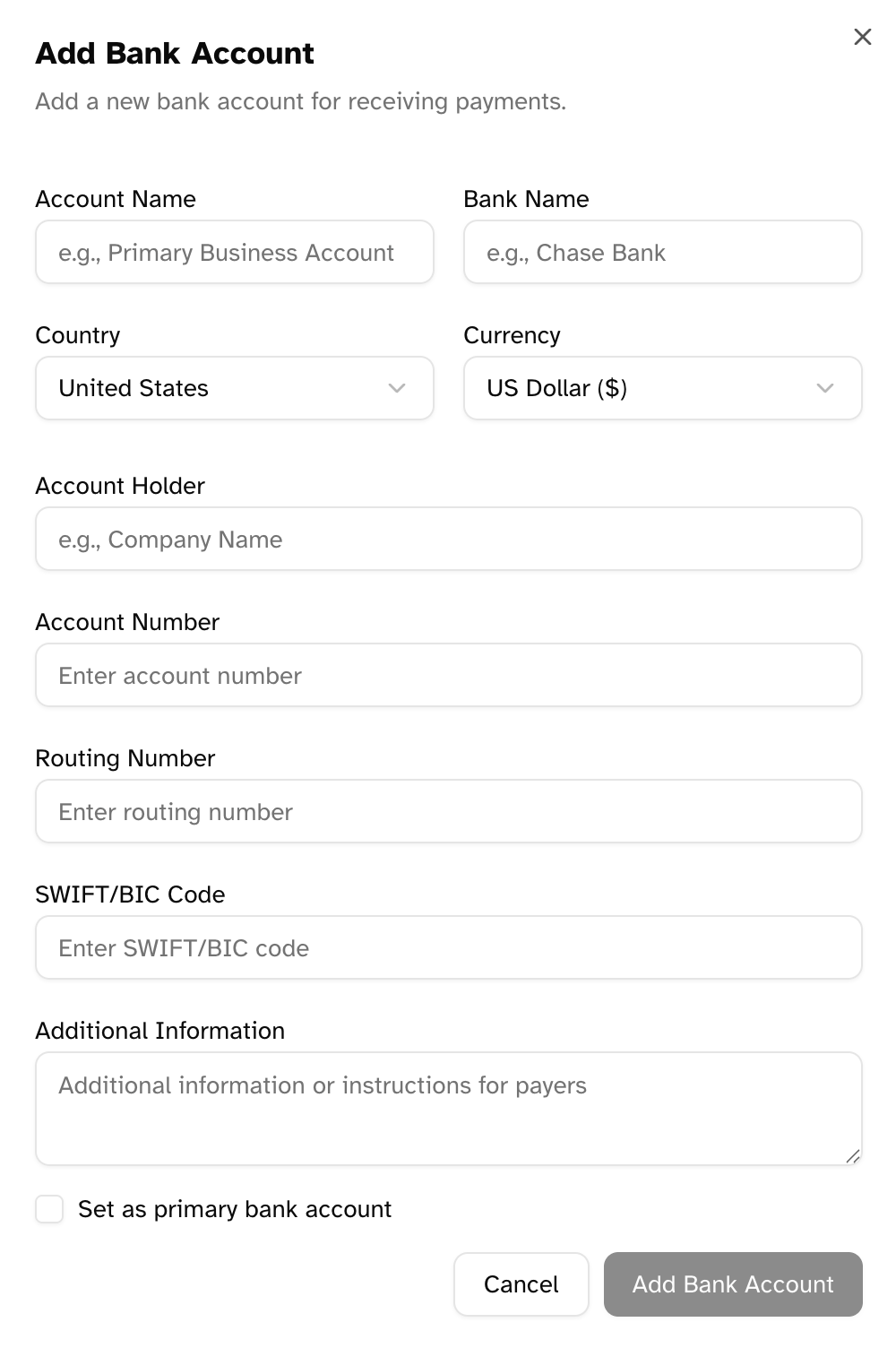
To add a new bank account:
1. Navigate to **Settings → Bank Accounts**
2. Click the **Add Bank Account** button
3. Fill in the account details:
* **Account Name**: A descriptive name for internal reference (e.g., "Business Checking")
* **Bank Name**: The official name of your bank
* **Country**: The country where your bank account is located
* **Currency**: The currency of the account
* **Account Holder**: The name on the account (individual or company name)
* **Account Number**: Your account number
4. Provide country-specific details (displayed based on selected country):
* For US accounts: Routing Number
* For European accounts: IBAN and optionally SWIFT/BIC
* For UK accounts: Sort Code
* For Australian accounts: BSB Number
* For Indian accounts: IFSC Code
5. Add any additional information or payment instructions in the description field
6. Check "Set as primary bank account" if this should be your default account
7. Click **Add Bank Account**
### Creating a New Bank Account
To add a new bank account:
1. Navigate to **Settings → Bank Accounts**
2. Click the **Add Bank Account** button
3. Fill in the account details:
* **Account Name**: A descriptive name for internal reference (e.g., "Business Checking")
* **Bank Name**: The official name of your bank
* **Country**: The country where your bank account is located
* **Currency**: The currency of the account
* **Account Holder**: The name on the account (individual or company name)
* **Account Number**: Your account number
4. Provide country-specific details (displayed based on selected country):
* For US accounts: Routing Number
* For European accounts: IBAN and optionally SWIFT/BIC
* For UK accounts: Sort Code
* For Australian accounts: BSB Number
* For Indian accounts: IFSC Code
5. Add any additional information or payment instructions in the description field
6. Check "Set as primary bank account" if this should be your default account
7. Click **Add Bank Account**
 **Tips for Creating Bank Accounts:**
* Use clear, descriptive names that help you distinguish between accounts
* Double-check all numbers and codes for accuracy
* Include any specific payment instructions in the description field
* Set up accounts for each currency you accept, if applicable
### Setting a Primary Bank Account
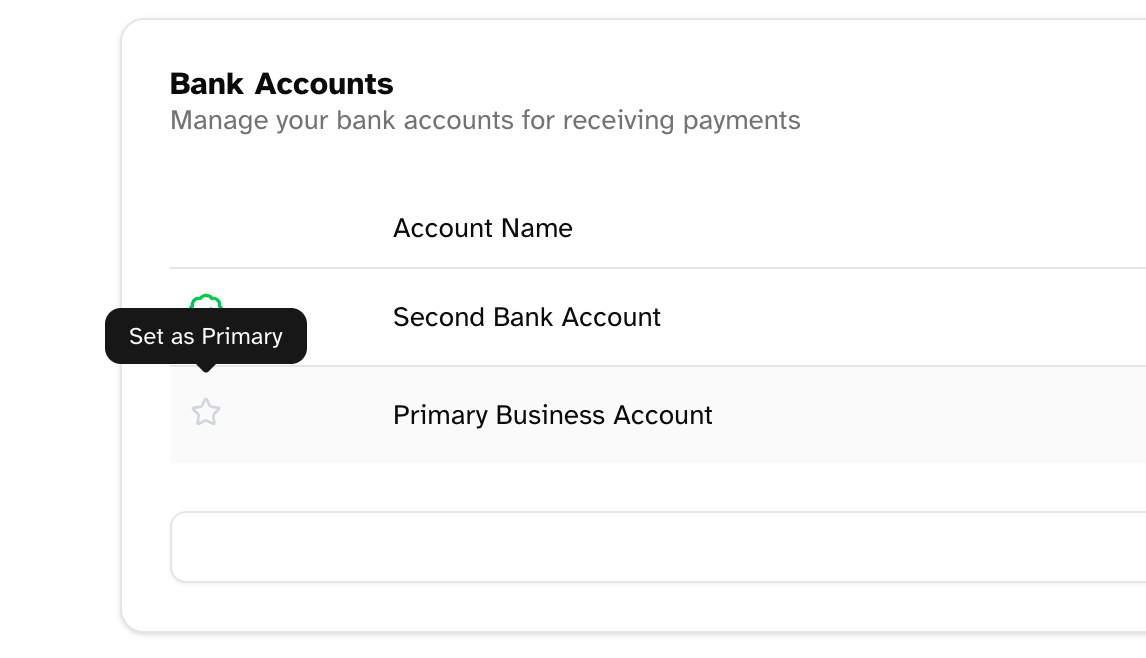
The primary bank account is used as the default for new invoices that include bank transfer as a payment option. To set an account as primary:
1. Locate the account in the list
2. Click the star icon in the left column
3. The account will be marked with a checkmark indicating it's now primary
**Tips for Creating Bank Accounts:**
* Use clear, descriptive names that help you distinguish between accounts
* Double-check all numbers and codes for accuracy
* Include any specific payment instructions in the description field
* Set up accounts for each currency you accept, if applicable
### Setting a Primary Bank Account
The primary bank account is used as the default for new invoices that include bank transfer as a payment option. To set an account as primary:
1. Locate the account in the list
2. Click the star icon in the left column
3. The account will be marked with a checkmark indicating it's now primary
 **Note:** You must always have one primary account. If you only have one bank account, it will automatically be set as primary.
### Editing an Existing Bank Account
To modify an existing bank account:
1. Locate the account in the list
2. Click the pencil (edit) icon
3. Update any of the account details
4. Click **Save Changes**
**Note:** You must always have one primary account. If you only have one bank account, it will automatically be set as primary.
### Editing an Existing Bank Account
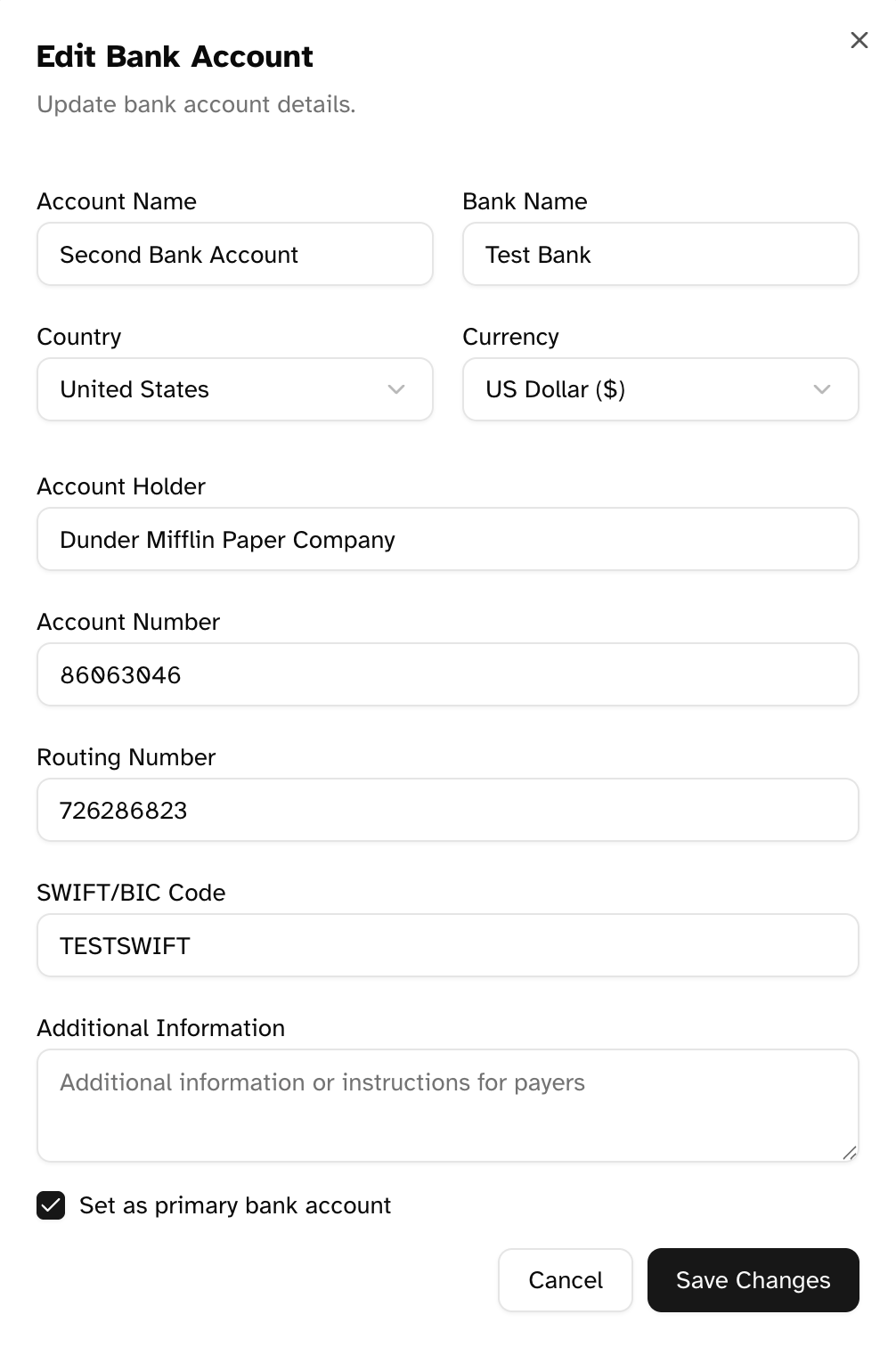
To modify an existing bank account:
1. Locate the account in the list
2. Click the pencil (edit) icon
3. Update any of the account details
4. Click **Save Changes**
 **Note:** When you edit a bank account, the changes will be reflected on any future invoices that use this account. However, existing invoices will maintain the bank details as they were at the time of creation.
### Deleting a Bank Account
To delete a bank account:
1. Locate the account in the list
2. Click the trash (delete) icon
3. Confirm the deletion in the dialog
**Note:** When you edit a bank account, the changes will be reflected on any future invoices that use this account. However, existing invoices will maintain the bank details as they were at the time of creation.
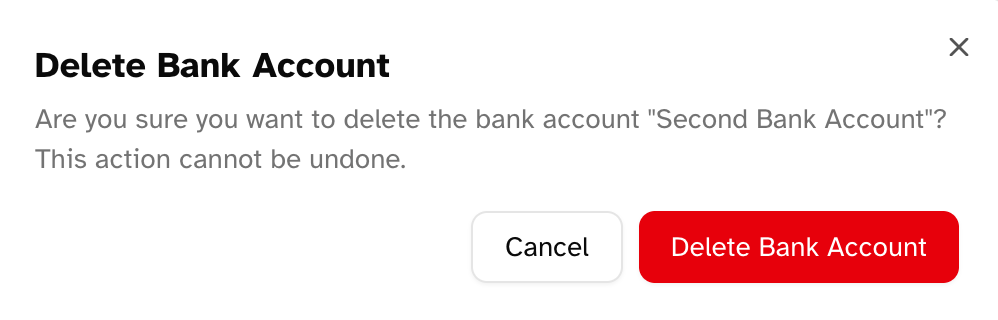
### Deleting a Bank Account
To delete a bank account:
1. Locate the account in the list
2. Click the trash (delete) icon
3. Confirm the deletion in the dialog
 **Important Limitations:**
* You cannot delete the only bank account in your system
* If you delete a primary account, another account will automatically be promoted to primary
* Deleting an account does not affect existing invoices that already reference it
## Bank Accounts in Invoices
### How Bank Accounts Appear on Invoices
When a client views an invoice with bank transfer as a payment option, they'll see your bank account details in the payment section:
* Account holder name
* Bank name
* Account number (partially masked for security)
* Relevant routing codes based on the account's country
* Any additional payment instructions
### Selecting a Bank Account for an Invoice
When creating or editing an invoice:
1. Enable bank transfer as a payment method
2. Choose which bank account to display from the dropdown menu
3. The primary account will be selected by default
4. Clients will see these details when viewing the invoice
## Best Practices for Bank Account Management
### Security Considerations
* Blinksale masks account numbers in the interface for security
* Full account details are only visible to clients on their invoice payment pages
* Review your bank accounts periodically to ensure information is current
* Update account details immediately if you change banks
### International Business Considerations
* Set up accounts in multiple currencies if you do business internationally
* Include SWIFT/BIC codes for international transfers
* Consider adding specific wire transfer instructions in the description field
* Be aware of country-specific banking requirements
### Account Organization Tips
* Use descriptive names that include currency or purpose (e.g., "USD Business Account")
* Set the most frequently used account as primary
* Keep account information updated to avoid payment delays
* Include correspondent bank information in the description field if needed for international transfers
## Troubleshooting
### Common Issues
1. **Missing or incorrect routing information**
* Verify all routing numbers, SWIFT codes, and other identifiers with your bank
* Different countries require different routing information
2. **Payments credited to wrong account**
* Ensure currency matches the invoice currency
* Check that primary account designation is correct
3. **Country-specific fields not appearing**
* Select the correct country to see the appropriate fields
* Contact support if banking details for your country aren't properly supported
### Getting Help
If you need assistance with bank account settings:
1. Contact your bank to verify correct account and routing information
2. Check country-specific banking requirements for international transfers
3. Contact Blinksale support for technical assistance with the bank account settings feature
By properly configuring your bank accounts in Blinksale, you provide clients with all the information they need to pay you efficiently via bank transfer, reducing payment delays and improving your cash flow.
**Important Limitations:**
* You cannot delete the only bank account in your system
* If you delete a primary account, another account will automatically be promoted to primary
* Deleting an account does not affect existing invoices that already reference it
## Bank Accounts in Invoices
### How Bank Accounts Appear on Invoices
When a client views an invoice with bank transfer as a payment option, they'll see your bank account details in the payment section:
* Account holder name
* Bank name
* Account number (partially masked for security)
* Relevant routing codes based on the account's country
* Any additional payment instructions
### Selecting a Bank Account for an Invoice
When creating or editing an invoice:
1. Enable bank transfer as a payment method
2. Choose which bank account to display from the dropdown menu
3. The primary account will be selected by default
4. Clients will see these details when viewing the invoice
## Best Practices for Bank Account Management
### Security Considerations
* Blinksale masks account numbers in the interface for security
* Full account details are only visible to clients on their invoice payment pages
* Review your bank accounts periodically to ensure information is current
* Update account details immediately if you change banks
### International Business Considerations
* Set up accounts in multiple currencies if you do business internationally
* Include SWIFT/BIC codes for international transfers
* Consider adding specific wire transfer instructions in the description field
* Be aware of country-specific banking requirements
### Account Organization Tips
* Use descriptive names that include currency or purpose (e.g., "USD Business Account")
* Set the most frequently used account as primary
* Keep account information updated to avoid payment delays
* Include correspondent bank information in the description field if needed for international transfers
## Troubleshooting
### Common Issues
1. **Missing or incorrect routing information**
* Verify all routing numbers, SWIFT codes, and other identifiers with your bank
* Different countries require different routing information
2. **Payments credited to wrong account**
* Ensure currency matches the invoice currency
* Check that primary account designation is correct
3. **Country-specific fields not appearing**
* Select the correct country to see the appropriate fields
* Contact support if banking details for your country aren't properly supported
### Getting Help
If you need assistance with bank account settings:
1. Contact your bank to verify correct account and routing information
2. Check country-specific banking requirements for international transfers
3. Contact Blinksale support for technical assistance with the bank account settings feature
By properly configuring your bank accounts in Blinksale, you provide clients with all the information they need to pay you efficiently via bank transfer, reducing payment delays and improving your cash flow.